


DRM-X 4.0 HTML web page encryption tutorial
With DRM-X 4.0, it encrypts web pages includes html, CSS, JavaScript and images, and control who can view your web content. It stops copying, prevent printing and print screen, and expires content when it should no longer be viewed.
It encrypts web pages using Haihaisoft DRM-X 4.0's strong and private encryption method and digital rights management controls to prevent unauthorized use and misuse of your web page content.
Web page encryption steps:
Step 1: Download and install Xvast browser
First we need to visit www.xvast.com and download and install the Xvast browser, then complete the installation of Xvast.
Step 2: Operate DRM-X 4.0 encryption settings
1. Running Xvast browser, visit 4.drm-x.com and login your account.
2. Download and install Xvast encryption packager
3. Enter the Rights page, create a License Rights.
Fill in the following information, enable "Protect Document" in "Protect PDF Settings", Click "Show Watermark Settings" to show the watermark setting information, Select "Enable watermark in protected files", and set the username as the watermark display text, Select the watermark area, Set "Font Size". The second watermark mode is only enabled in the video. If you want to turn on, please select the color of the watermark, select software in blacklist, then save the settings.
4. Visit the license profile page, generate new profile
Enter the Profile Name and select the license Rights we just created.
5. Encrypt web content
Please prepare the file of the web page that needs to be encrypted, enter the "Protect File" page, select a license profile, then the Rights and Group under this Profile will be automatically displayed. Click "Popup encrypt dialog" in step 4.
In the encryption, we need to set the output path for encrypted files, select "add new output folder" and create a new folder to put encrypted web content. (Here we remove this option, because we have a video file in the encrypted content, this video file is embedded in the web page, so we need to remove the options here.)
Next we choose the files to encrypt, here we click "Browse directory..." Click the "Start" button to start encryptionThe end, if there are files in the folder that do not support encryption, the program will prompt you to copy these files to the output folder, we commend choosing "Copy".
Click the "Start" button to start encryptionThe end, if there are files in the folder that do not support encryption, the program will prompt you to copy these files to the output folder, we commend choosing "Copy".
Step 3: Use Xvast browser to open encrypted webpage
1. Right click "Open with Xvast" on the web page, The Xvast will automatically go to the page for obtaining the license, and you need to obtain the license to visit web content.
2. You can upload the encrypted web content to the server. After the upload is complete, we enter the URL in the Xvast address bar.
When users use other browsers to visit encrypted web page, they will see that the page shows messy code, at the top they can see tips "Please open this content in Xvast browser".
DRM-X 4.0 system can also be integrated with your website. After integration, you can control the user's login authentication and obtain a license according to your own mode. If your website is a dynamic web page, you can generate static web pages then encrypt the web page.
Other DRM-X 4.0 Tutorials
 DRM-X 4.0 Introduction Video
We through the Video show you the demo how to use DRM-X 4.0 platform, how to settings before encryption and How to encrypt video. We will show you how to play encrypted video.
WATCH NOW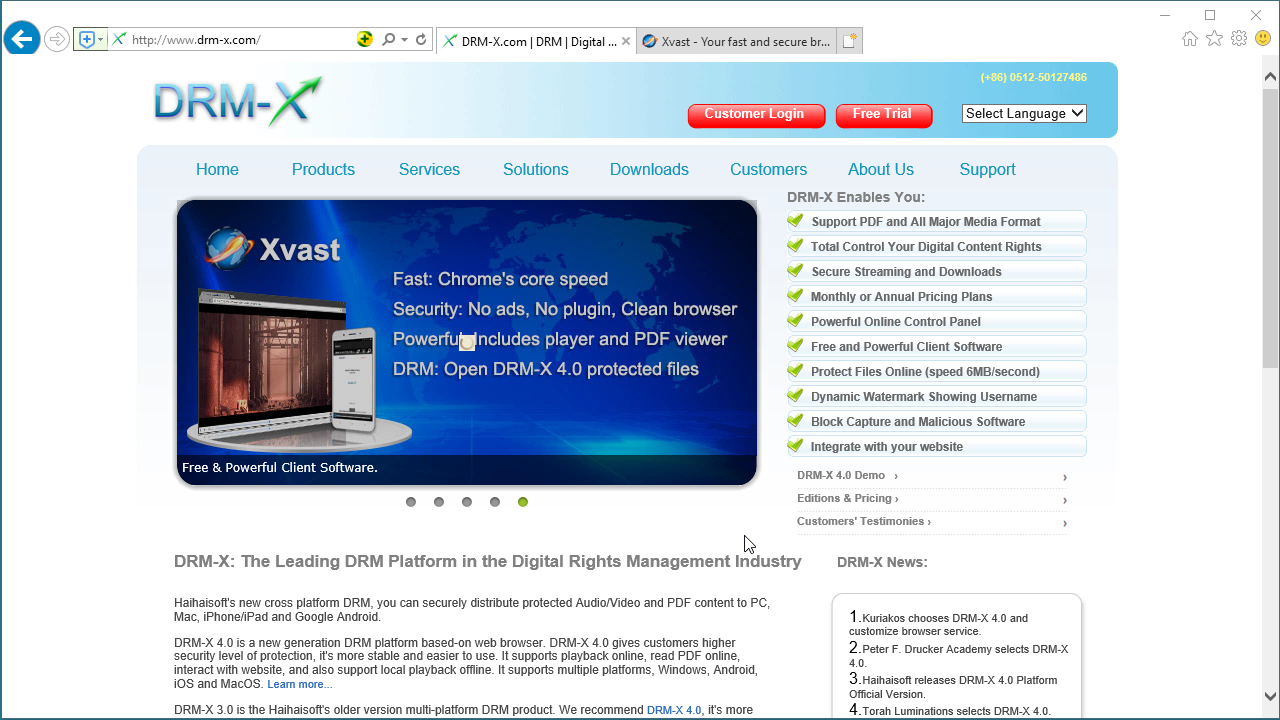 DRM-X 4.0 HTML web page encryption tutorial
With DRM-X 4.0, it encrypts web pages includes html, CSS, JavaScript and images, and control who can view your web content. It stops copying, prevent printing and print screen, and expires content when it should no longer be viewed.
WATCH NOW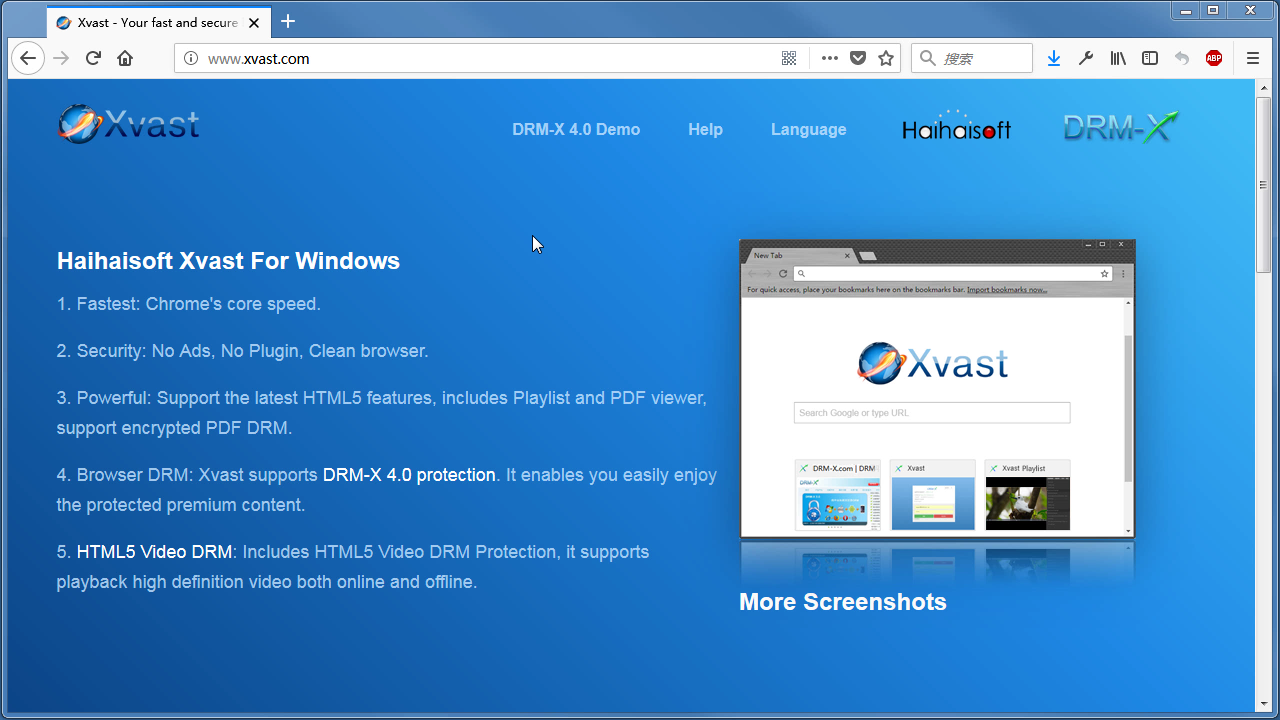 Xvast Windows Video Tutorial
We through the Video show you the demo how to download, install and use Xvast browser, how to open encrypted file and How to solve problems with use.
WATCH NOW DRM-X 4.0 Video Encryption Tutorial
We through the Video show you the demo how to use DRM-X 4.0 platform, how to settings before encryption and How to encrypt video. We will show you how to play encrypted video.
WATCH NOW DRM-X 4.0 integration with WordPress
Custom login page integration is a customer ordered a protected content from your website, when customer plays the content, it will prompt your website customized login page, after customers input Username and Password of your websites account, they will get the license immediately to play the protected file. It requires you create a new DRM login page.
WATCH NOW DRM-X 4.0 Security Settings
When you use DRM-X 4.0 platform, there's something to notice. To make protection safer, please select a series of necessary options to prevent piracy. It's very important to do these settings in the beginning.
WATCH NOWQuestions?
Our reps have answers.
Ask about Haihaisoft products, pricing, implementation, or anything else — our highly trained reps are standing by, ready to help.
Tel: +64 27 507 9959 (New Zealand)
QQ: 1279126286 / 994184623
Contact us on Microsoft Teams
service#haihaisoft.com (replace # into @)
Contact Us