

Xvast Text Tutorial
Welcome to the Xvast Browser Help Center. Here you'll find detailed product guides and frequently asked questions (FAQs) to help you get started quickly and resolve any issues. For additional questions, feel free to contact us anytime for support.
Xvast Text Tutorial
1. Show "The signature has expired." when joining a Zoom meeting.
Method 1: Revisit the URL to join the meeting. If it still can't be solved, please try method 2.
Method 2: Check the system time setting and modify it to the correct time.
Then you can see the Xvast interface, click on the icon in the lower right corner of the file, and you will see the file you just synced in the file list.
How to Delete License? (Windows & Mac)
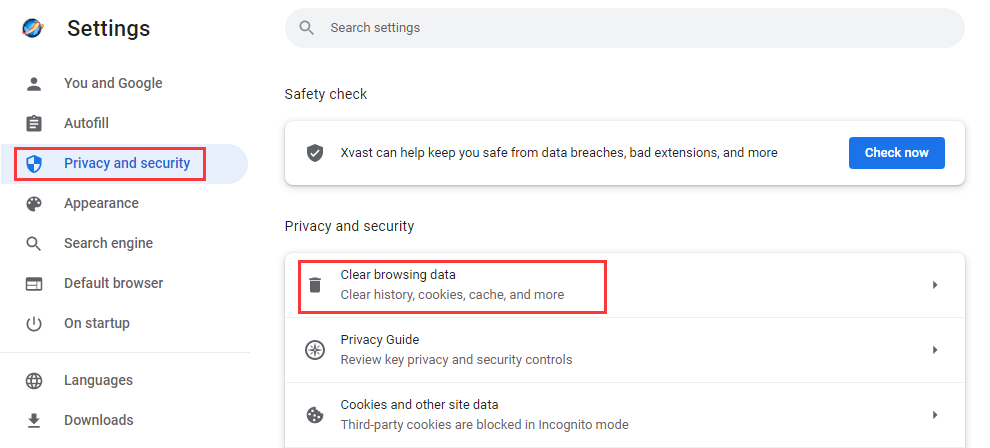
Open Xvast browser, in Menu->Settings, "Privacy and security", and click "Clear browsing data..." :
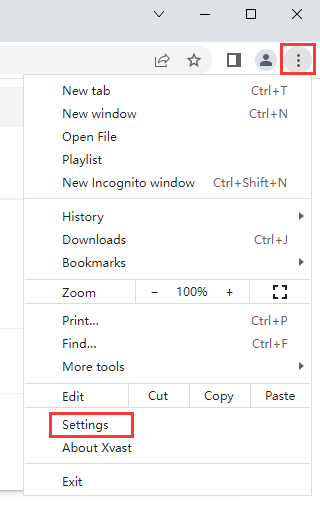
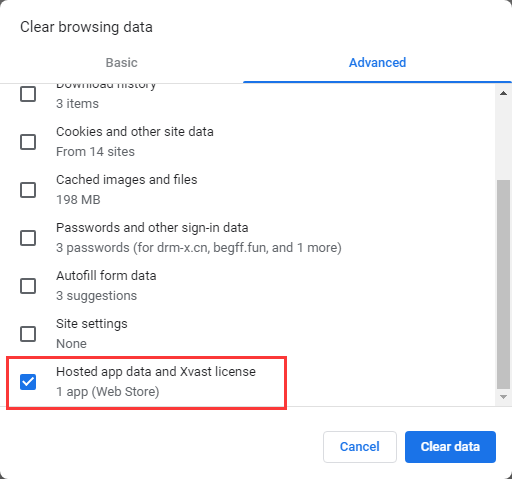
Select "Hosted app data and Xvast license" and click "Clear data" button.
How to Delete License? (Android)
Open Xvast browser, click options icon:
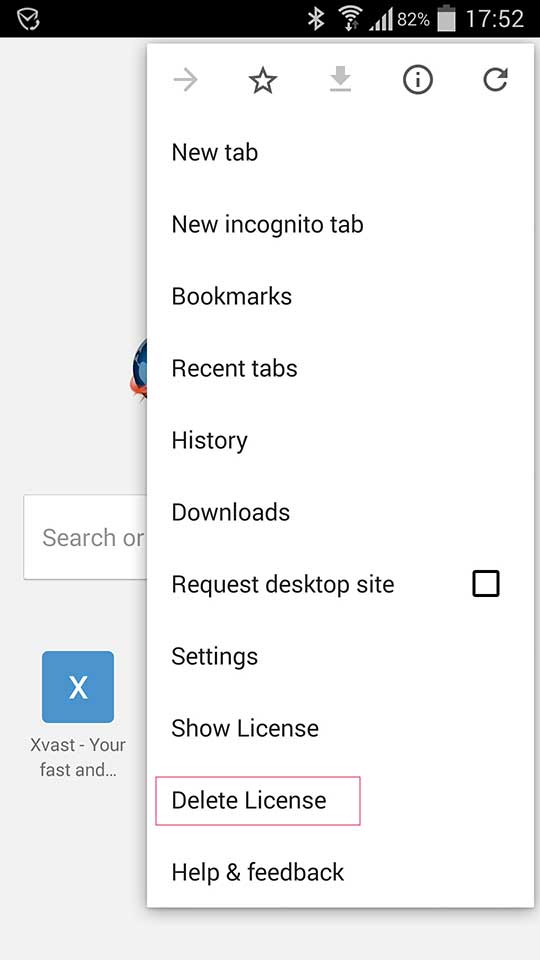
click "Delete License", You will see the following interface:
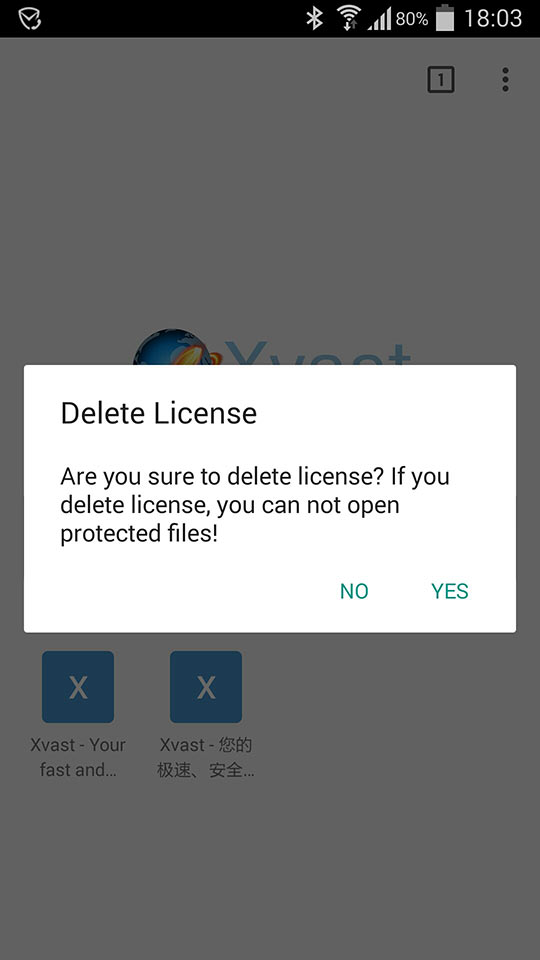
click "YES" to delete license.
How to Delete License? (iOS)
Open Xvast browser, click delete icon:

How to play audio/video online, and obtain license?
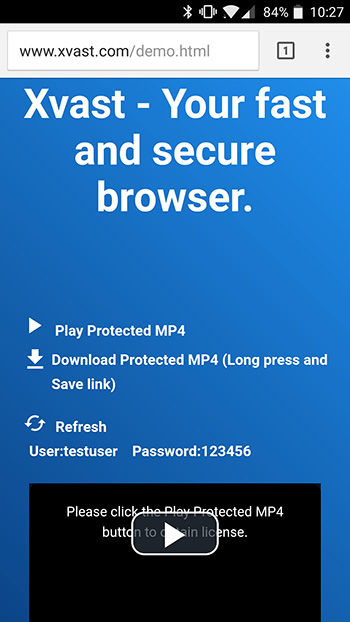
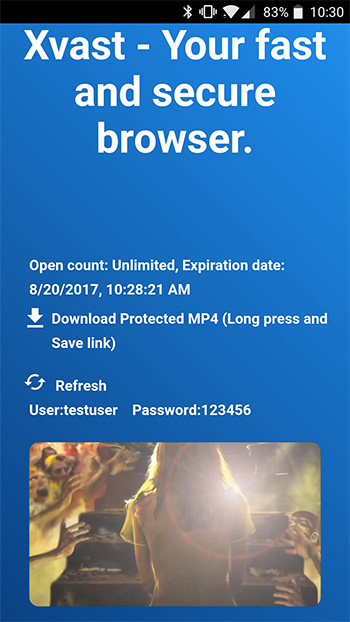
Please open the online audio/video play page, if you open this video for the first time, you will need to click the play button to obtain license.
When you got a license, it will automatically redirect back to the audio/video play page. If it does not redirect back to the play page, please visit again.
How to download PDF files or audio/video files, and how to open the file through the Downloads list?
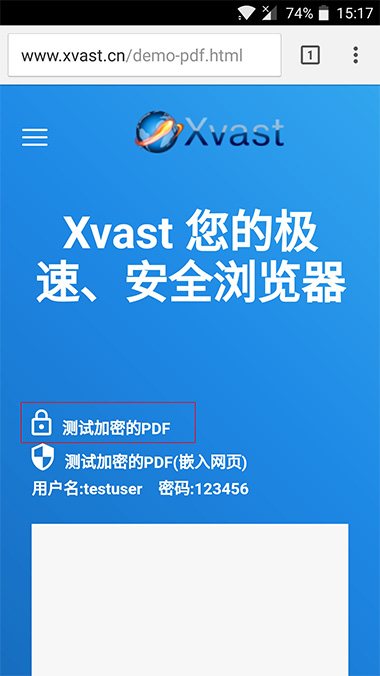
Download PDF:
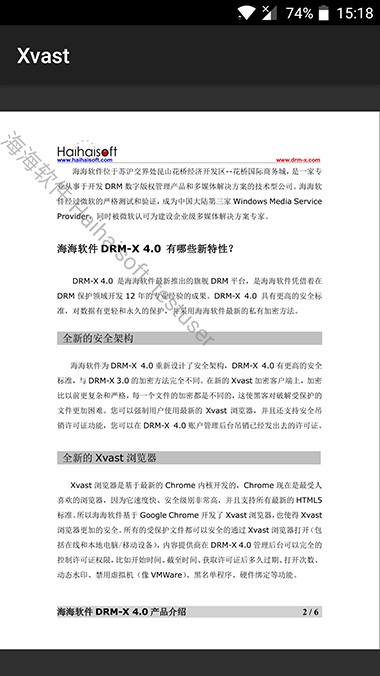
Click the PDF download URL in the web page, the Xvast will start download this PDF file, when the download is complete, if you have not obtained a license, it will automatically redirect to get the license page, after you obtained a license, you can read the encrypted PDF.
How to download audio/video file?
Long press the video download URL (the URL ending is .mp4 or .mp3) in the web page, and you will see the following window:
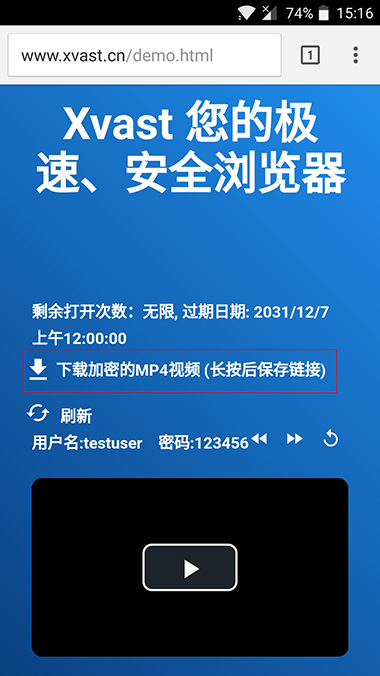
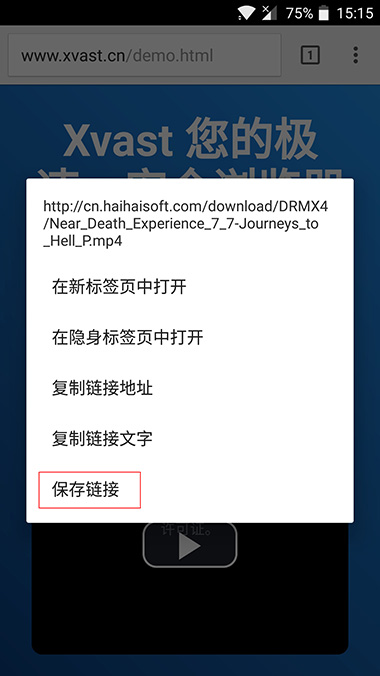
Click the Save link, the Xvast will start download the audio/video. If download is completed, the video will be automatically opened, if you have not obtain license, it will redirect to the obtain license page. After you got the license, you can play the encrypted media file.
How to open the encrypted file through Downloads list?
Click the icon in the upper right corner of the Xvast interface. It will pop-up a menu:
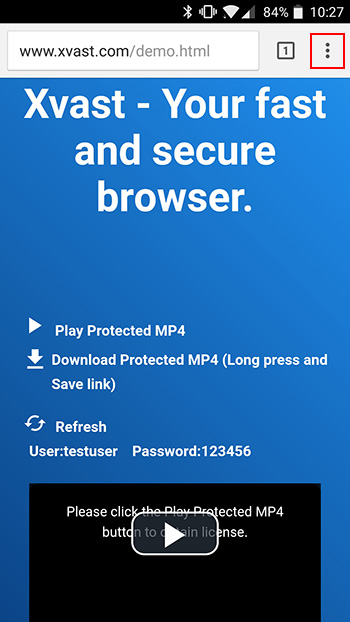
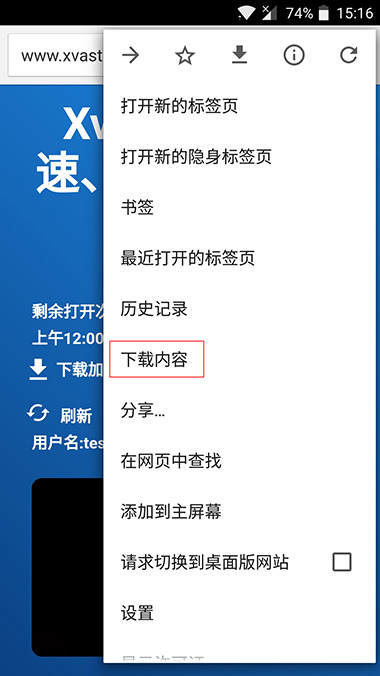
Click "Downloads" to see the downloaded PDF and audio/video. You can click the file open it directly.
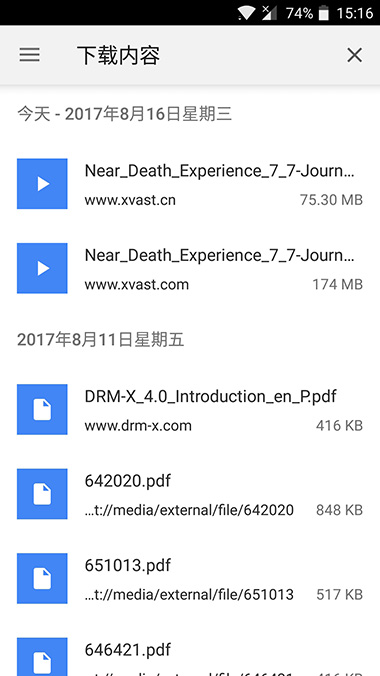
How to open the encrypted file through the File Manager (It works on most Android devices)?
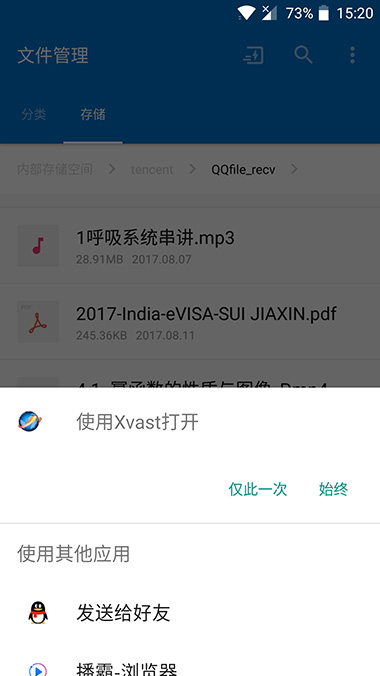
You can use the system File Manager or the third-party file manager app to find the file you want to open.
Click on the file, it will pop-up an option (The file options may be slightly different on different devices. Some devices you need to long press on the file,it will show you more options, select More), Open with Xvast:
Step 1:Search Xvast in the App Store and install it.
Step 2:Run Xvast, you will see a blank page, enter the audio/video or PDF download page URL in the top URL input box, and then click the file URL to download. It will automatically start to download.
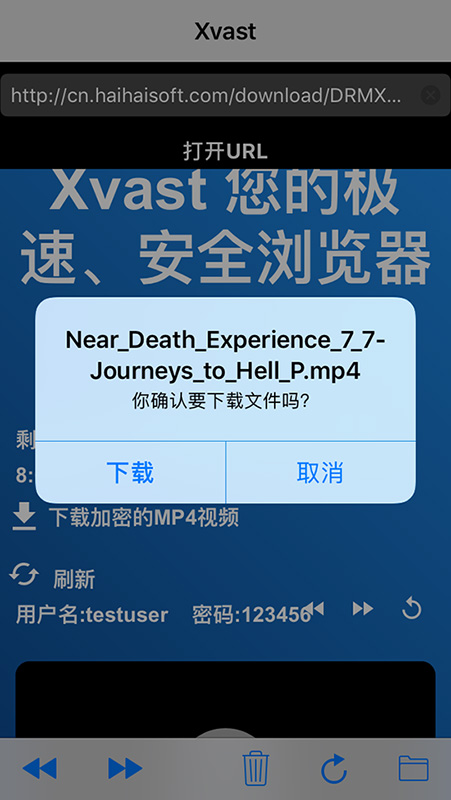
After click “Download” button, you will see the download progress.
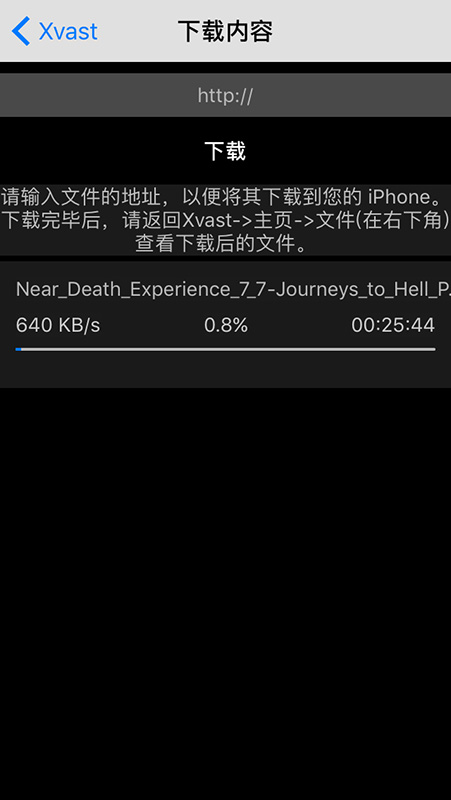
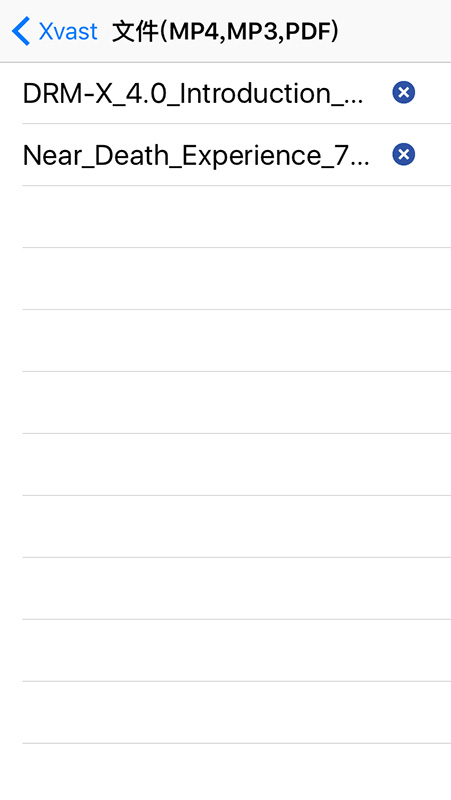
Once the download is complete, you can return to the Xvast->Home->File (Bottom right) to view the downloaded file.
Step 3:Click on the downloaded file, then you will see a login page, you need to sign into your account, and click the “Confirm And Get License” button.
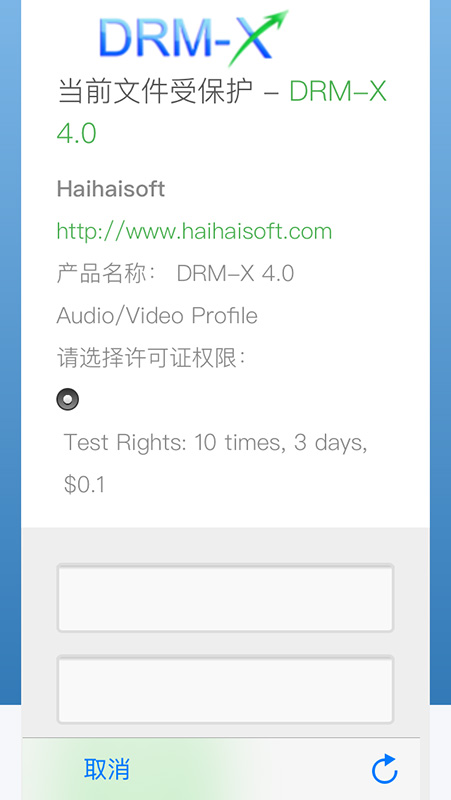
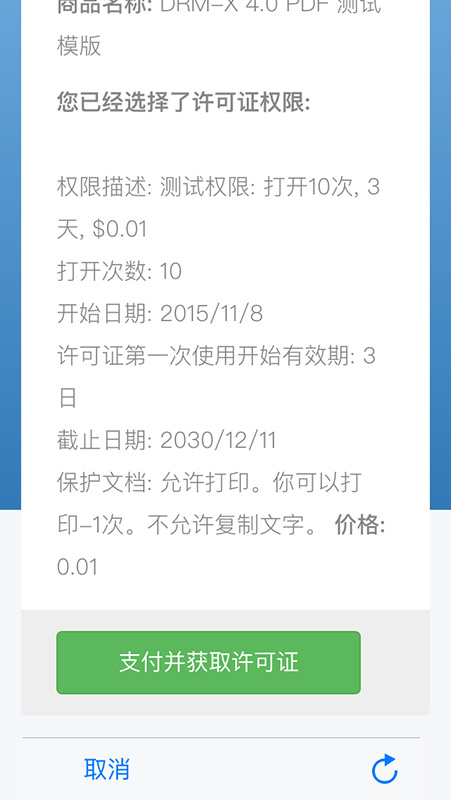
Xvast will automatically open this file after obtain the license.
Copy files to Xvast via the third-party Apps
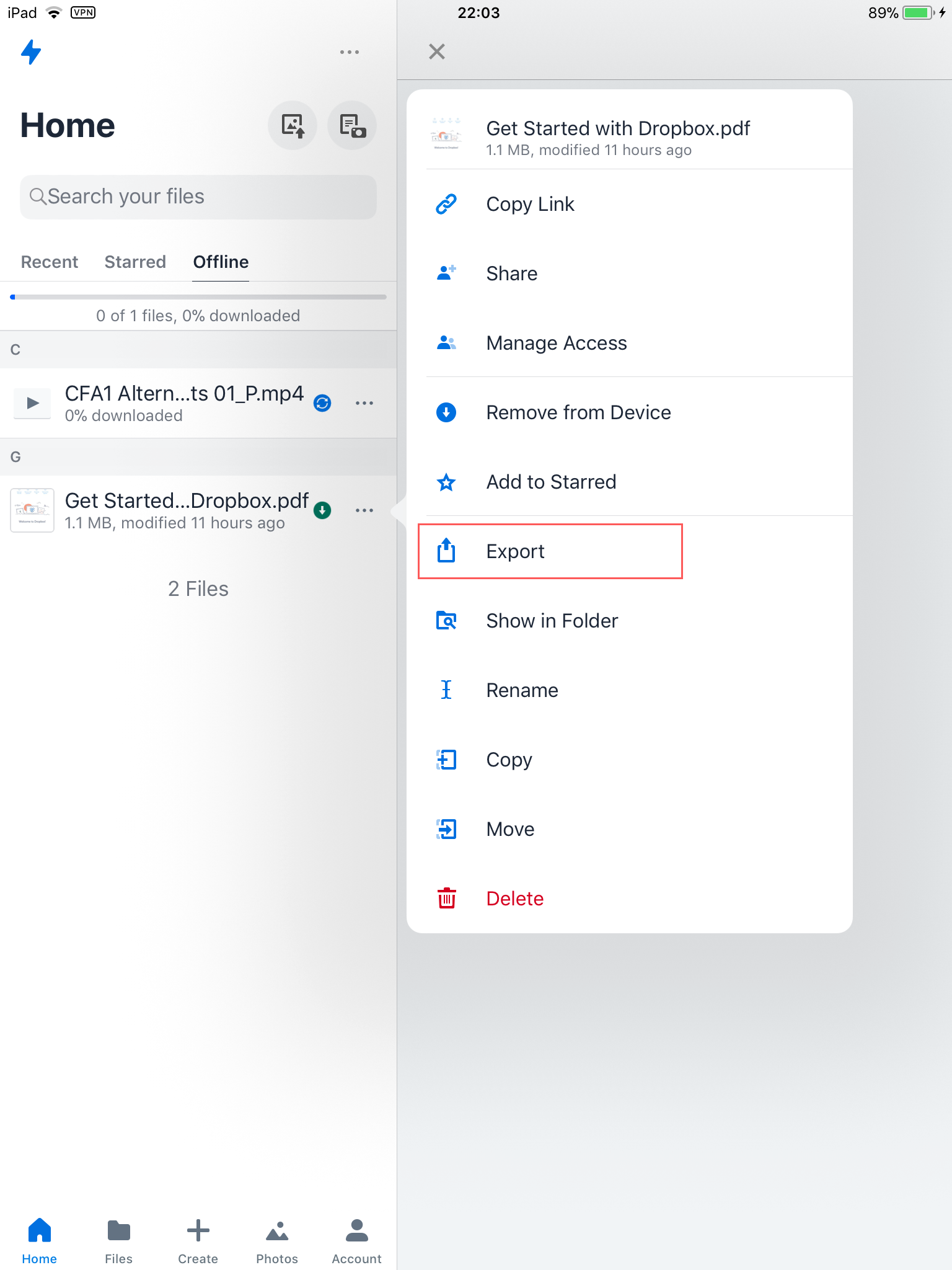
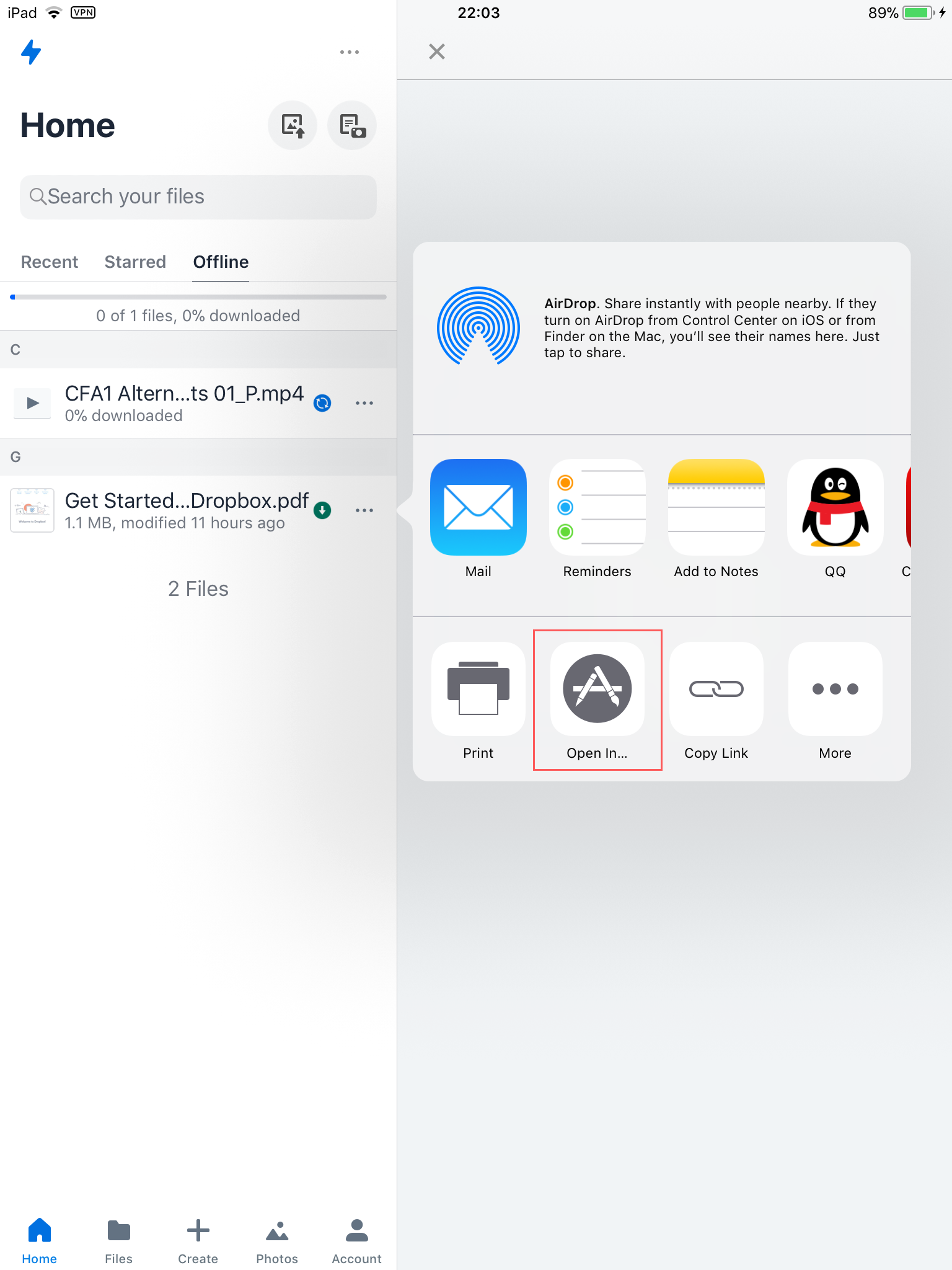
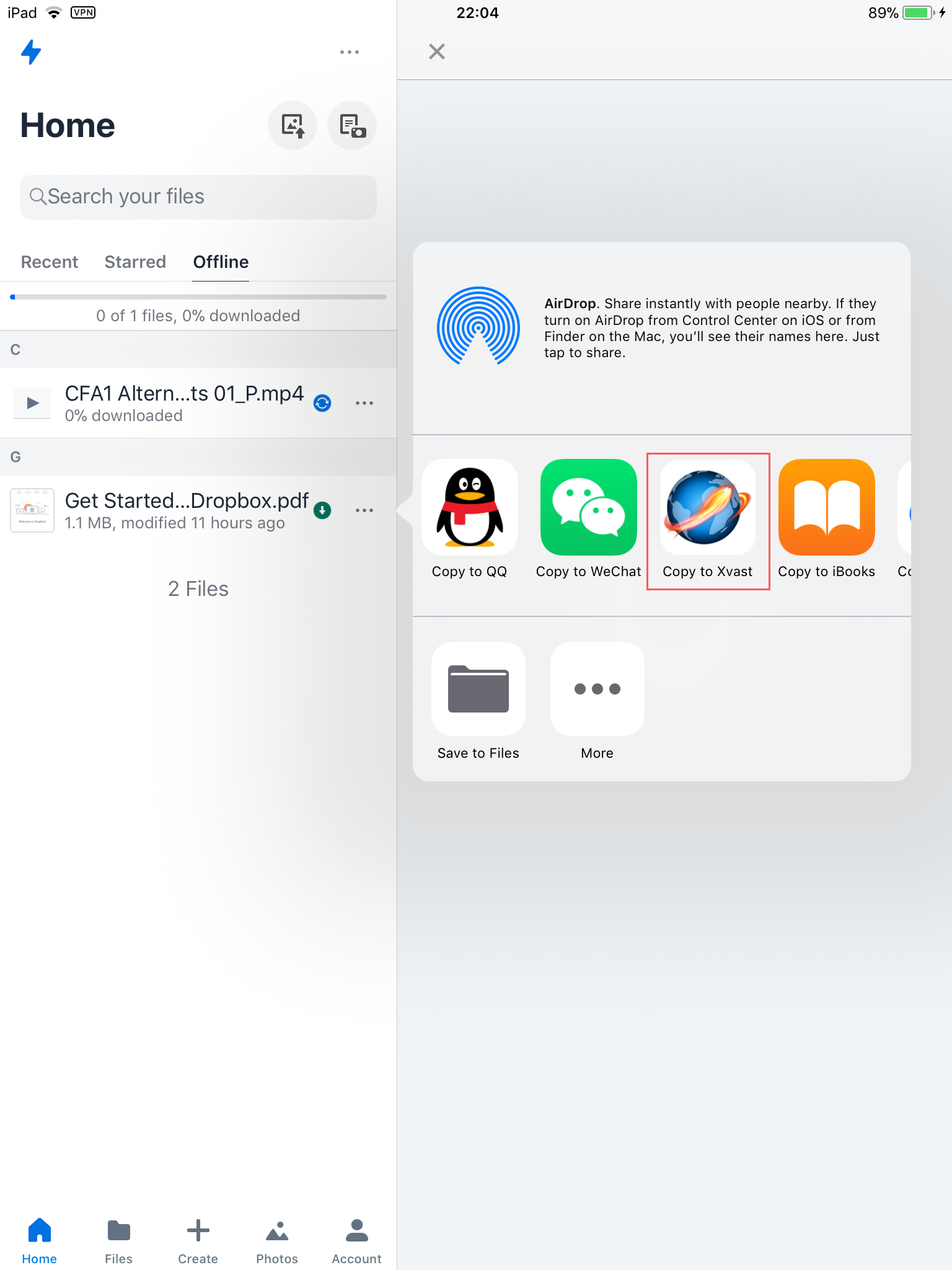
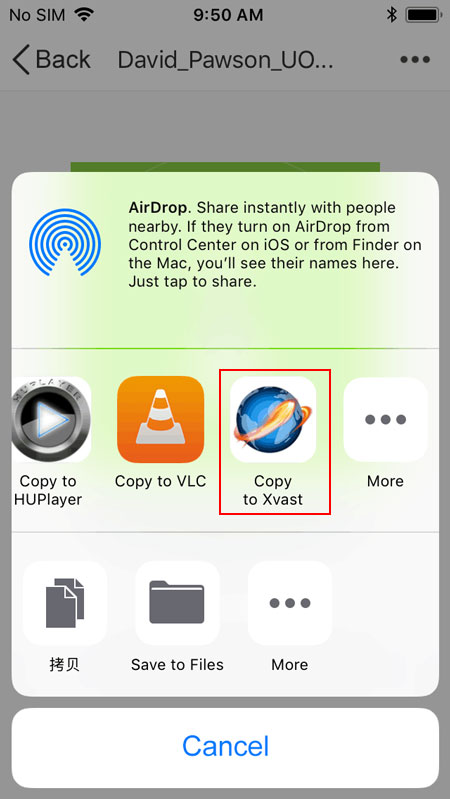
Xvast supports copying files to Xvast in third-party Apps. You can use a third-party app such as QQ or web disk to transfer or download files to your iPad or iPhone. Click on the downloaded file in a third-party app, click the "..." icon in the upper right corner, and then click "Open with other Apps." ..", then select "Copy to Xvast".
The following picture shows the copy to Xvast in QQ.
How to sync file to Xvast for iOS?
Step 1:Please connect your iPhone/iPad to PC/Mac with USB.
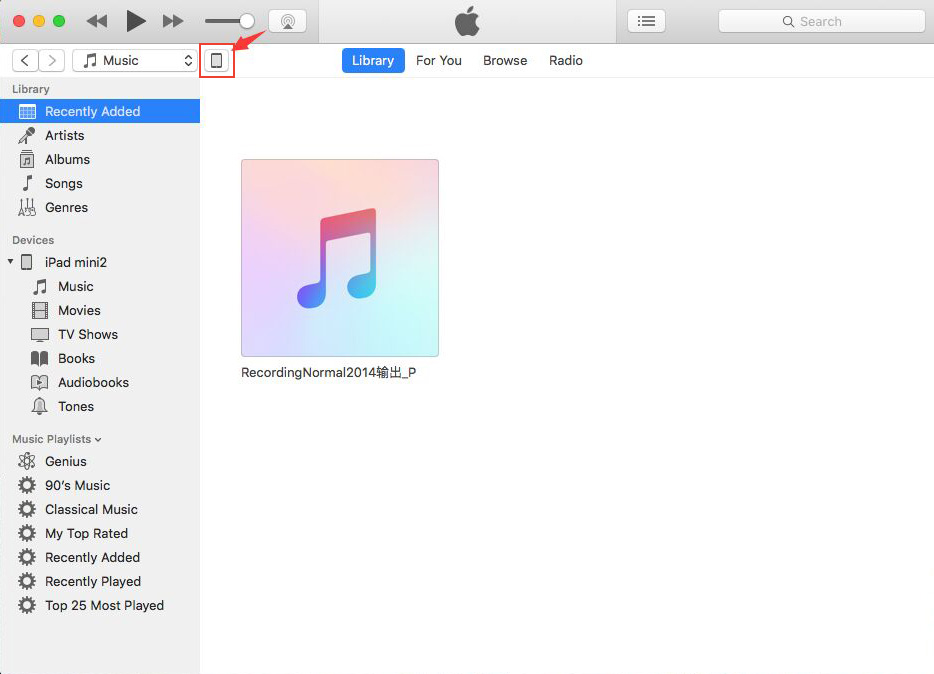
Step 2:Open the iTunes in PC/Mac, click "Device" icon as shown by the red arrow below.
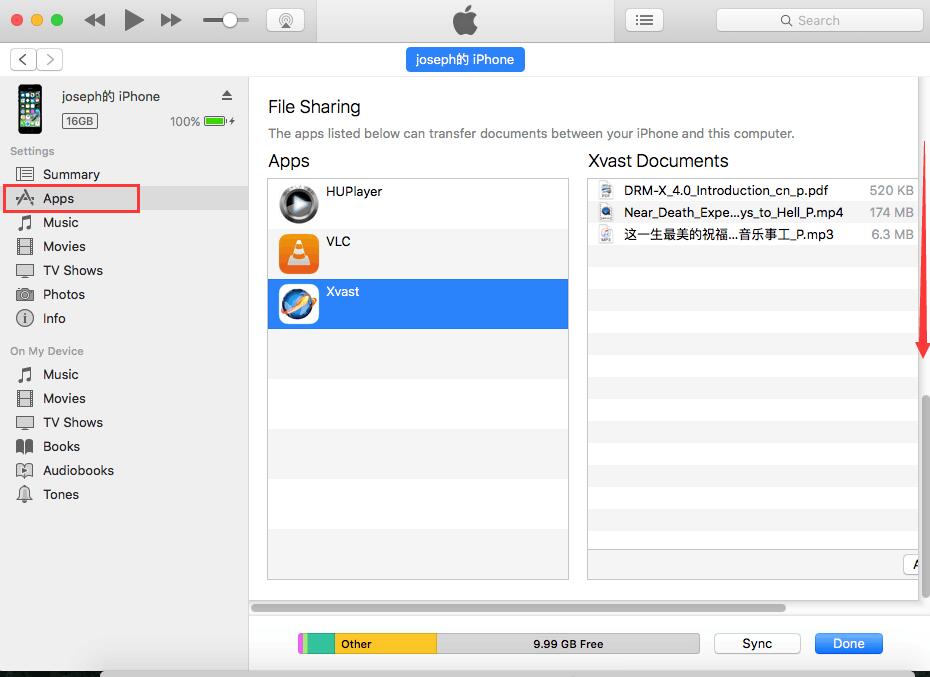
Step 3:Click "Apps" option, in Apps section, scroll down to the bottom of the page, Find "File Sharing" in "Apps", then find "Xvast" in "Files Sharing". In the right-bottom of the window, click the "Add…" button to add MP4 video, MP3 audio or PDF files.
After synchronization is complete, you can see the file is listed in the Xvast in your iPhone/iPad.
How to sync file to Xvast for iOS?
Step 1:Please connect your iPhone/iPad to PC/Mac with USB.
How to download encrypted file
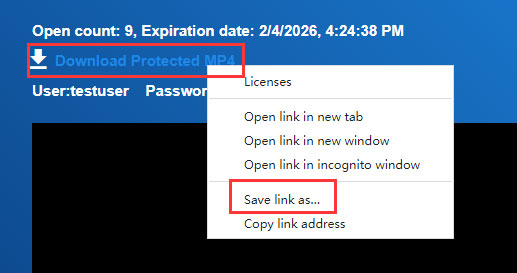
Right-click on the video URL and save the link as...
How to open the local encrypted file
1.Open the local encrypted file by right-click:
Windows (Right-click on the video file – Open with Xvast):

Mac (Right-click on the video file – Open with – Xvast.app):

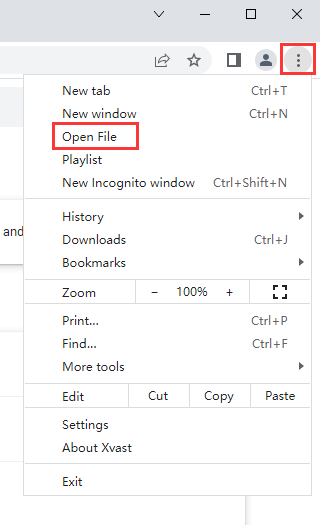
2.Open the local file via the Xvast "Menu" – "Open File":
Windows:
Mac:

How to use Playlist
Open the Xvast browser – "Menu" — "Playlist"
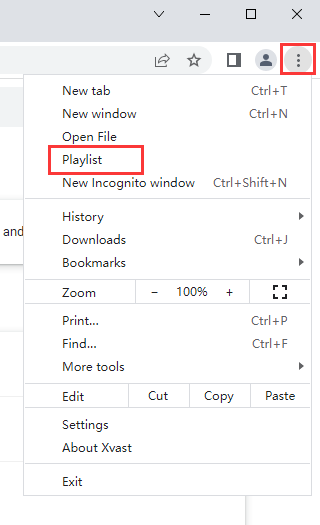
Go to the Playlist page
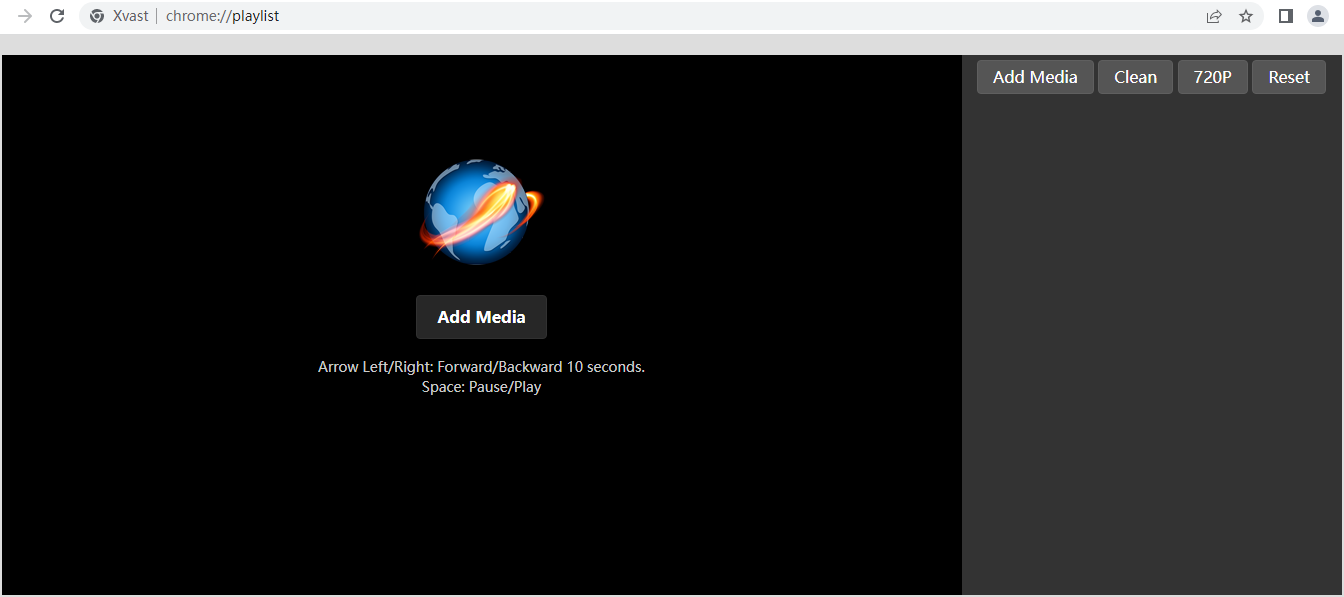
Playlist supports forward/backward, Pause/Play.
Arrow Left/Arrow Right: seek forward/backward 10 seconds.
Space: Pause/Play
Click the "Add Media" button, add media file to playlist.
Click the "Clean" button, clean the playlist.
Click the "720P" button, zoom in to the player.
Click the "Reset" button, reset the player resolution.
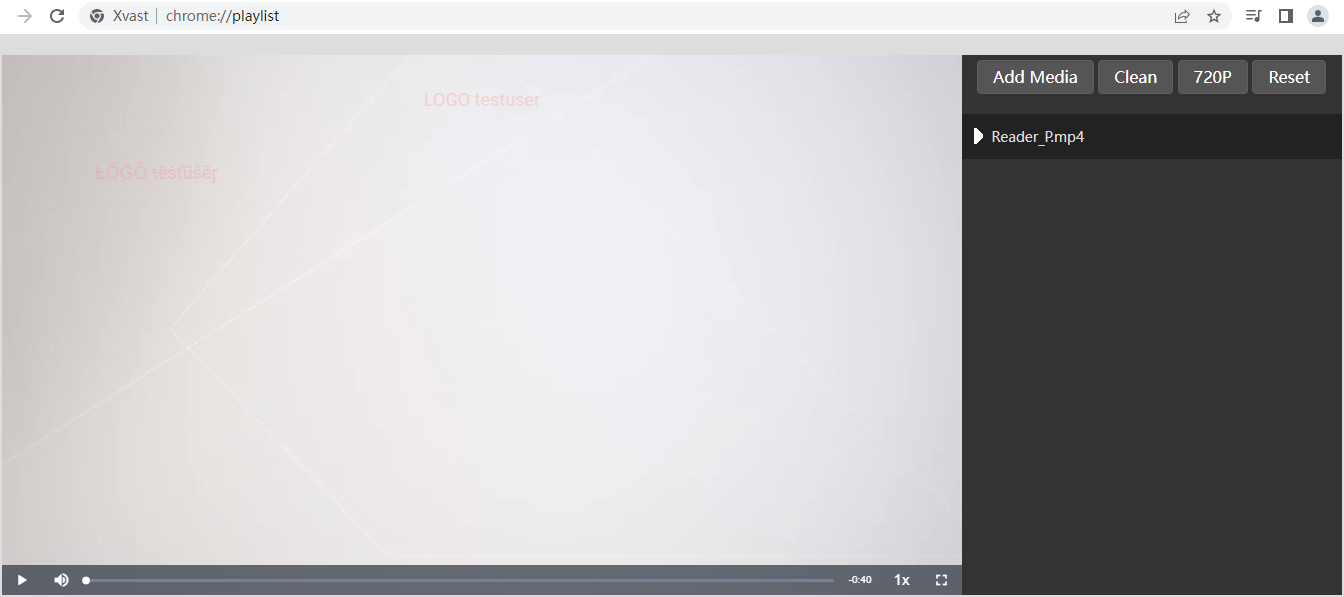
Drag the media item in the playlist to move up and move down to adjust the playlist order.
Open the Xvast browser. You can see the playlist icon in the lower right corner.

In the playlist interface, please click add icon to add file.
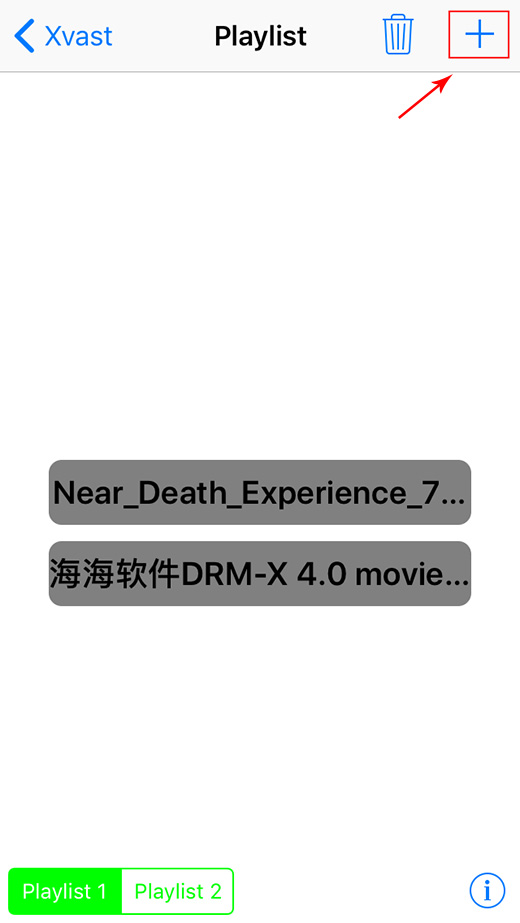
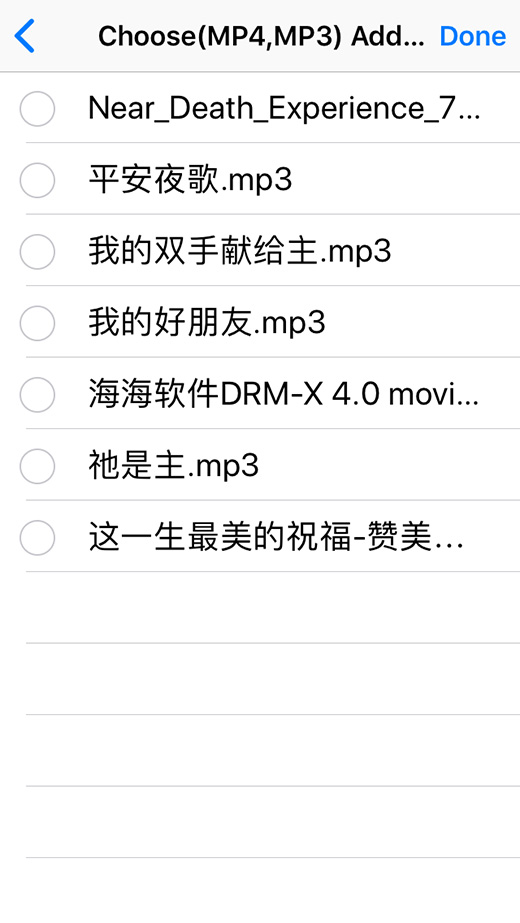
Select the file you want to add then click "Done". (You can use iTunes to sync file to Xvast or download MP3, MP4 file by Xvast.)
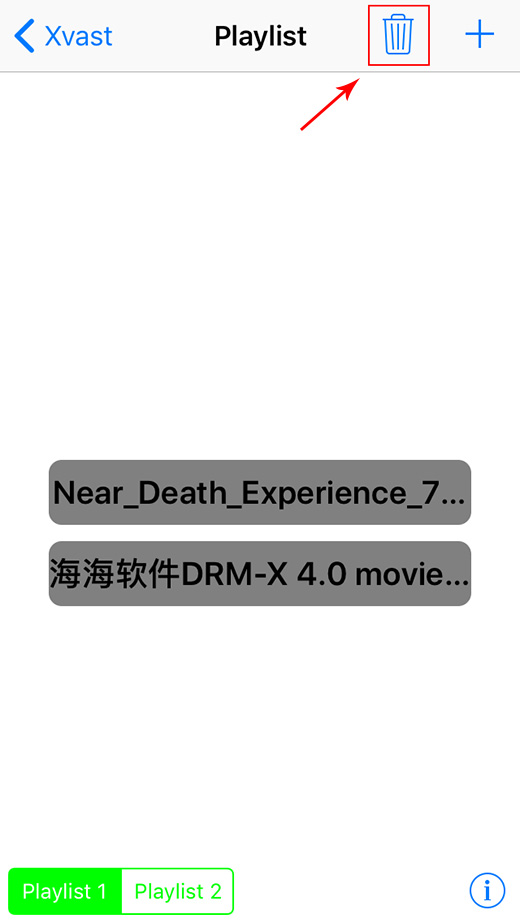
In the playlist interface, you can click delete icon to delete playlist item.


In the playlist interface, you can drag the item to adjust the order in Playlist.

Click one of the playlist to start playing. If you don’t have a license, the first time you need login to get a license, then it will continue to play, and play in the order of the playlist.
The first, Please download Xvast for Mac:
warning screenshot:
Before MacOS 15, warning screenshot:
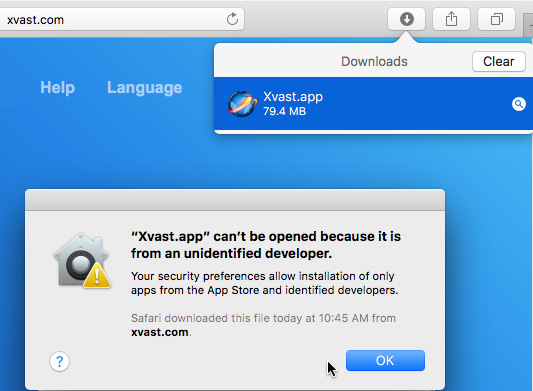
MacOS 15, warning screenshot:


MacOS 11.2, warning screenshot:

The solution is as follows:
Open

And enter the system password in the pop-up box. Then choose Anywhere.

And Then open the Xvast again, input Password in the prompt box, and click Always Allow

MacOS 11.2 settings as follows:


If you don’t have the above settings, please open the Terminal App of the Mac system, enter the "sudo spctl --master-disable" and Enter.

And then input your system password and press enter again.
Please open Xvast browser, in Menu->Settings, scroll down and click Show advanced settings, and find Languages. Change how Xvast handles and display languages.
Please add your language, and move it to the top, and choose Display Xvast in this language.
Because Xvast using Chrome core. It speeds up browser experience. But it doesn't support old operating system Windows XP. So please upgrade your Windows XP to Windows 7 or Windows 10 to install Xvast browser. It's more securer and faster operating system for you.
The benefit of Whitelist Protection for Mac is that content providers can ensure only Apple's system commonly used software can be running. All the other unknowing software will be existed automatically when protected digital content open. It ensures all the screen capture software can not start, and protects your digital content from screen capture.
Whitelist Protection For Mac only allows these programs running by default. If you want to add more programs, please contact us. You will need to choose customize client software service.
1. TextEdit 2. Safari 3. iTunes 4. System Preferences 5. Dictionary 6. iCal 7. Address Book 8. Xcode 9. Finder 10. Dashboard 11. Dock 12. Activity Monitor 13. HUPlayer 14. Haihaisoft Reader 15. Adobe AfterEffect 16. Adobe Photoshop 17. U3d 18. Numbers 19. Pages 20. Microsoft Word 21. Microsoft Excel 22. Microsoft PowerPoint 23. Microsoft OneNote 24. Mail 25. Adobe Reader 26. OpenOffice 27. Preview 28. Terminal 29. App Store
Other DRM-X 4.0 Tutorials
 DRM-X 4.0 Introduction Video
We through the Video show you the demo how to use DRM-X 4.0 platform, how to settings before encryption and How to encrypt video. We will show you how to play encrypted video.
WATCH NOW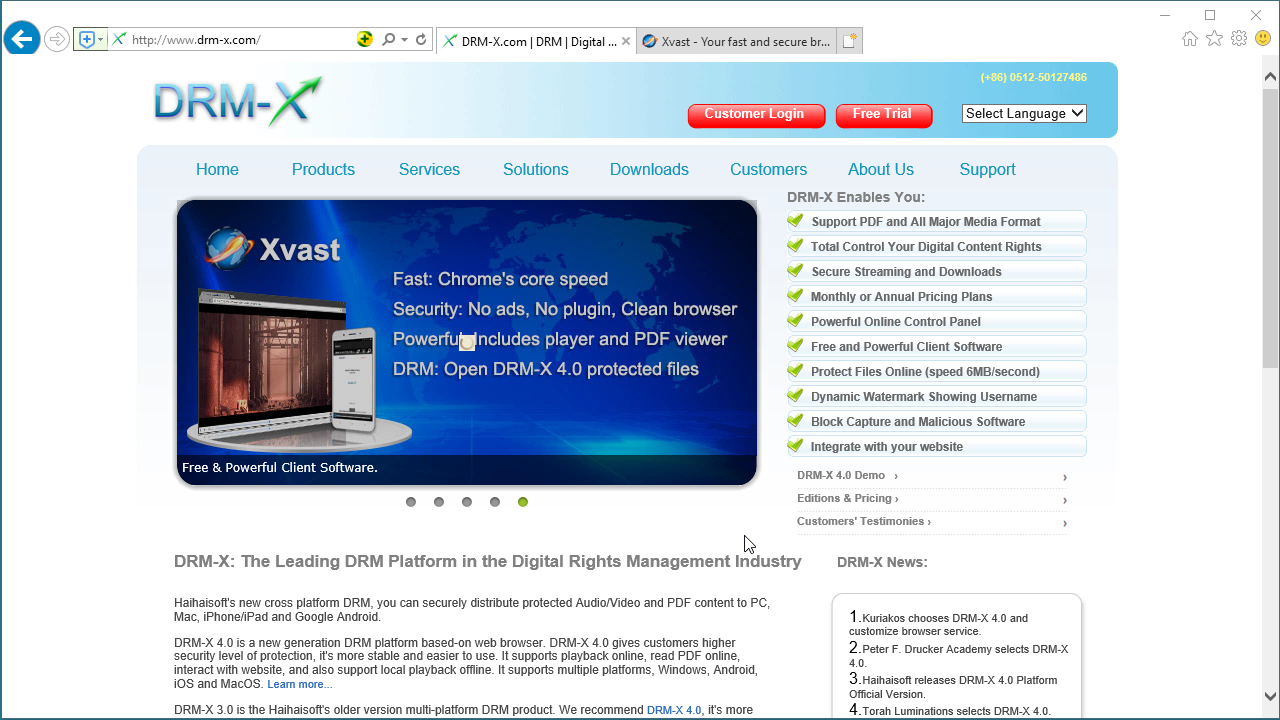 DRM-X 4.0 HTML web page encryption tutorial
With DRM-X 4.0, it encrypts web pages includes html, CSS, JavaScript and images, and control who can view your web content. It stops copying, prevent printing and print screen, and expires content when it should no longer be viewed.
WATCH NOW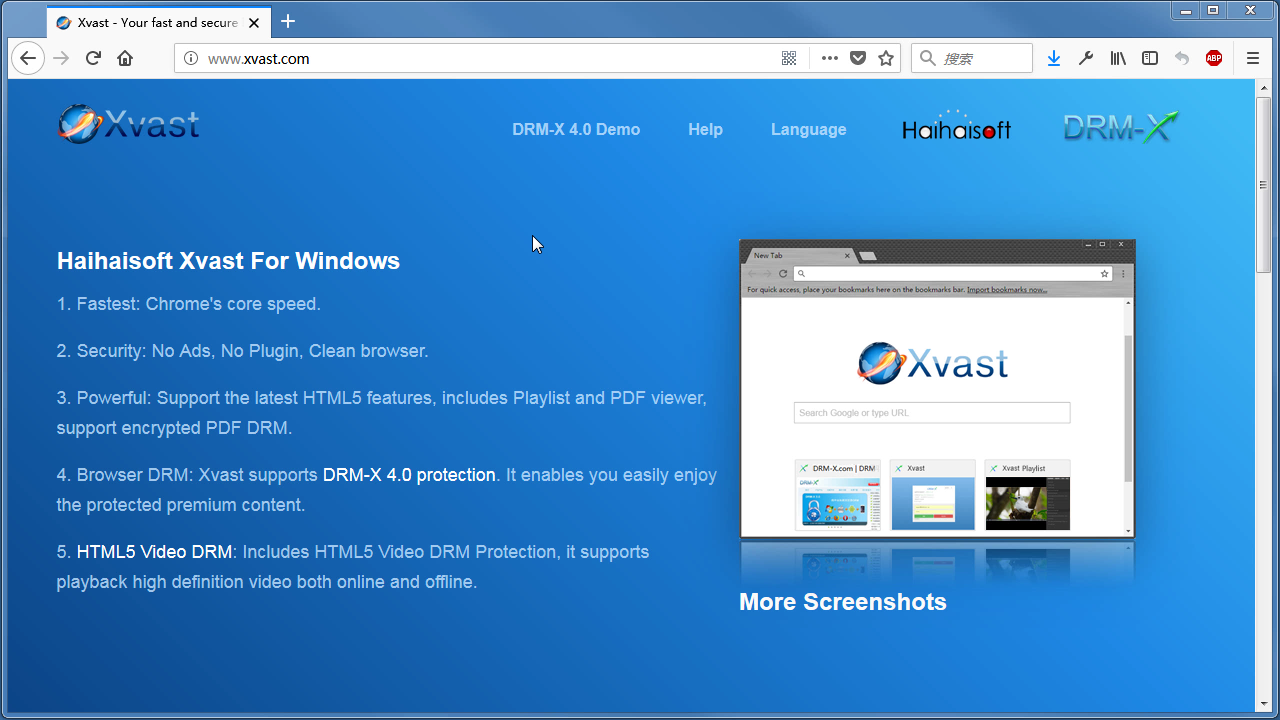 Xvast Windows Video Tutorial
We through the Video show you the demo how to download, install and use Xvast browser, how to open encrypted file and How to solve problems with use.
WATCH NOW DRM-X 4.0 Video Encryption Tutorial
We through the Video show you the demo how to use DRM-X 4.0 platform, how to settings before encryption and How to encrypt video. We will show you how to play encrypted video.
WATCH NOW DRM-X 4.0 integration with WordPress
Custom login page integration is a customer ordered a protected content from your website, when customer plays the content, it will prompt your website customized login page, after customers input Username and Password of your websites account, they will get the license immediately to play the protected file. It requires you create a new DRM login page.
WATCH NOW DRM-X 4.0 Security Settings
When you use DRM-X 4.0 platform, there's something to notice. To make protection safer, please select a series of necessary options to prevent piracy. It's very important to do these settings in the beginning.
WATCH NOWQuestions?
Our reps have answers.
Ask about Haihaisoft products, pricing, implementation, or anything else — our highly trained reps are standing by, ready to help.
Tel: +64 27 507 9959 (New Zealand)
QQ: 1279126286 / 994184623
Contact us on Microsoft Teams
service#haihaisoft.com (replace # into @)
Contact Us