

DRM-X 5.0 Features
Display Output Restrictions and Multi-Screen Protection
DRM-X 5.0 introduces a new “Only One Display Allowed” feature that restricts protected content to a single display, preventing playback on external monitors, HDMI-connected devices, or secondary screens to reduce the risk of illegal recording in multi-display environments. In addition, DRM-X 5.0 now supports wireless screen casting prevention, enabling content providers to more effectively control the display output path of protected content.
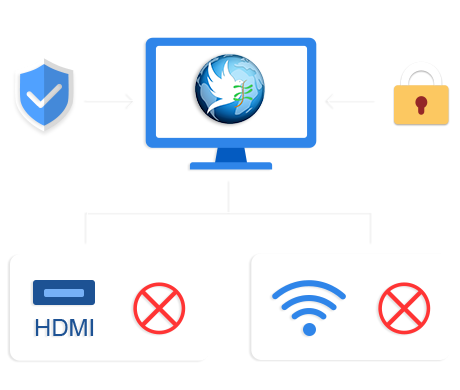
Only one display is allowed
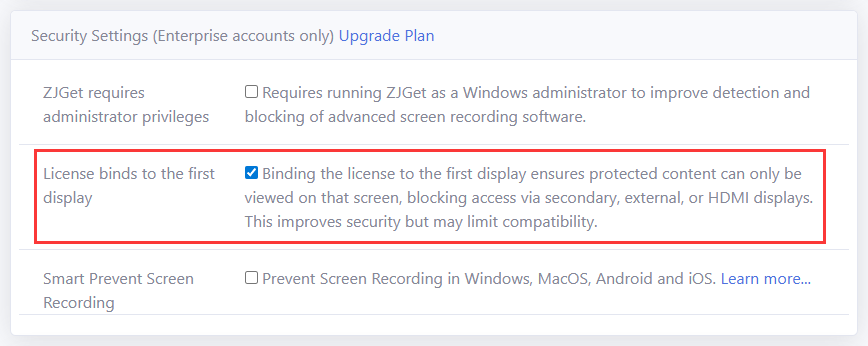
Available under Security Settings (Enterprise accounts only). Once enabled, the “Only One Display Allowed” feature restricts protected content to playback on a single authorized display. Output to external monitors, secondary screens, or HDMI-connected devices is automatically blocked.
Run ZJGet as Administrator (Enhanced Screen Recording Detection)
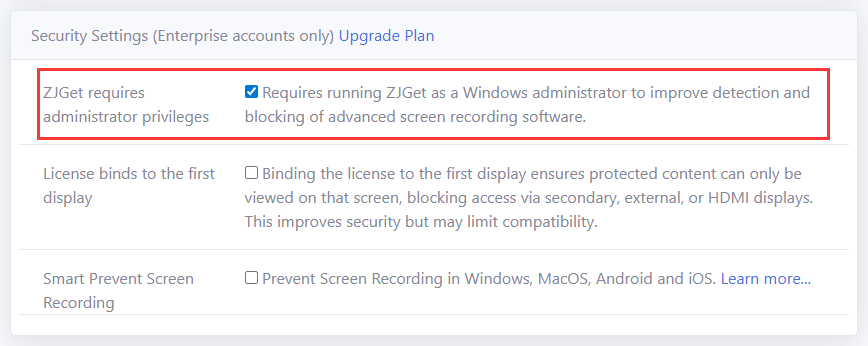
Also available under Security Settings (Enterprise accounts only). Running ZJGet with Windows administrator privileges enhances the detection and interception capability for screen recording software. Works alongside primary display binding for stronger overall content protection.
This feature is an enhanced configuration of the Smart Prevent Screen Recording Technology. For detailed instructions, please refer to the dedicated page for Smart Prevent Screen Recording Technology.
Wireless Mirroring Prevention

DRM-X 5.0 also supports blocking wireless screen mirroring. When a user attempts to cast protected content via Miracast, AirPlay, or similar protocols to a TV or projector, the system detects the mirroring and blocks content display.
Questions?
Our reps have answers.
Ask about Haihaisoft products, pricing, implementation, or anything else — our highly trained reps are standing by, ready to help.
Contact Us