

How to Configure DRM-X 5.0 Security Settings
This guide explains the recommended security settings for DRM-X 5.0. By following these best practices, you can better protect your videos, documents, and web content against unauthorized access, screen recording, and piracy before distributing them to end users.
We recommend Business Windows Account or above to protect files that for commercial sale.
1. License Profile Settings.
Please make sure that you choose License is Revocable option. If your users can always be online, please select Force Internet option.
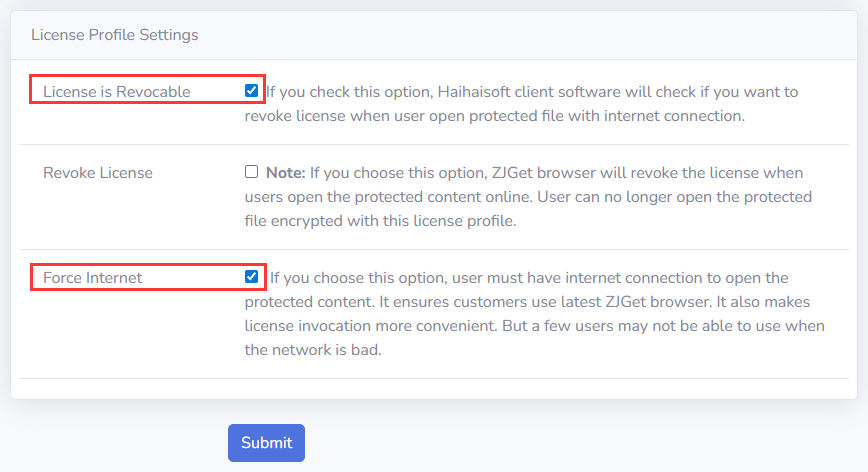
2. For different files, you can use different license profiles to enhance security.
At least, using different license profiles to protect different kinds of contents. If you use the same License Profile to protect your files, they can be opened by the same license. If your need higher security level, we recommend that you encrypt each file with different license profiles. It's more secure, but your users have to acquire licenses for each file.
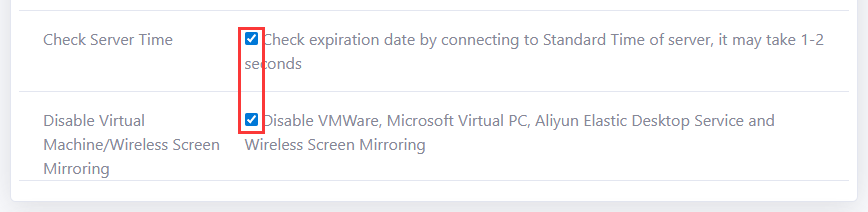
3. Basic Rights Settings: Please select Check Server Time option and Disable Virtual Machine option.
The system connects to the server to verify the license validity using standard time; this online verification takes approximately 1–2 seconds.
Operation in virtual environments such as VMware, Microsoft Virtual PC, and Alibaba Cloud's Wuying Cloud PC is prohibited. Additionally, wireless screen mirroring is disabled to prevent content from being recorded and leaked.
License Rights Settings:
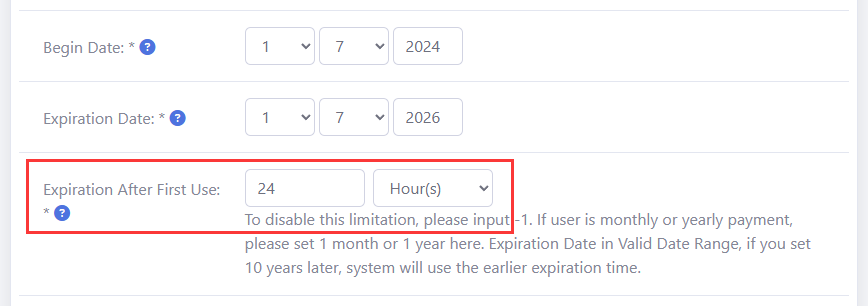
4. Expiration Time options: Expiration Date option and Expiration after First Use option.
They shouldn't be more than half a year. Longer expiration date will cause trouble when you revoke License and reset Rights. Shorter expiration date is more secure.
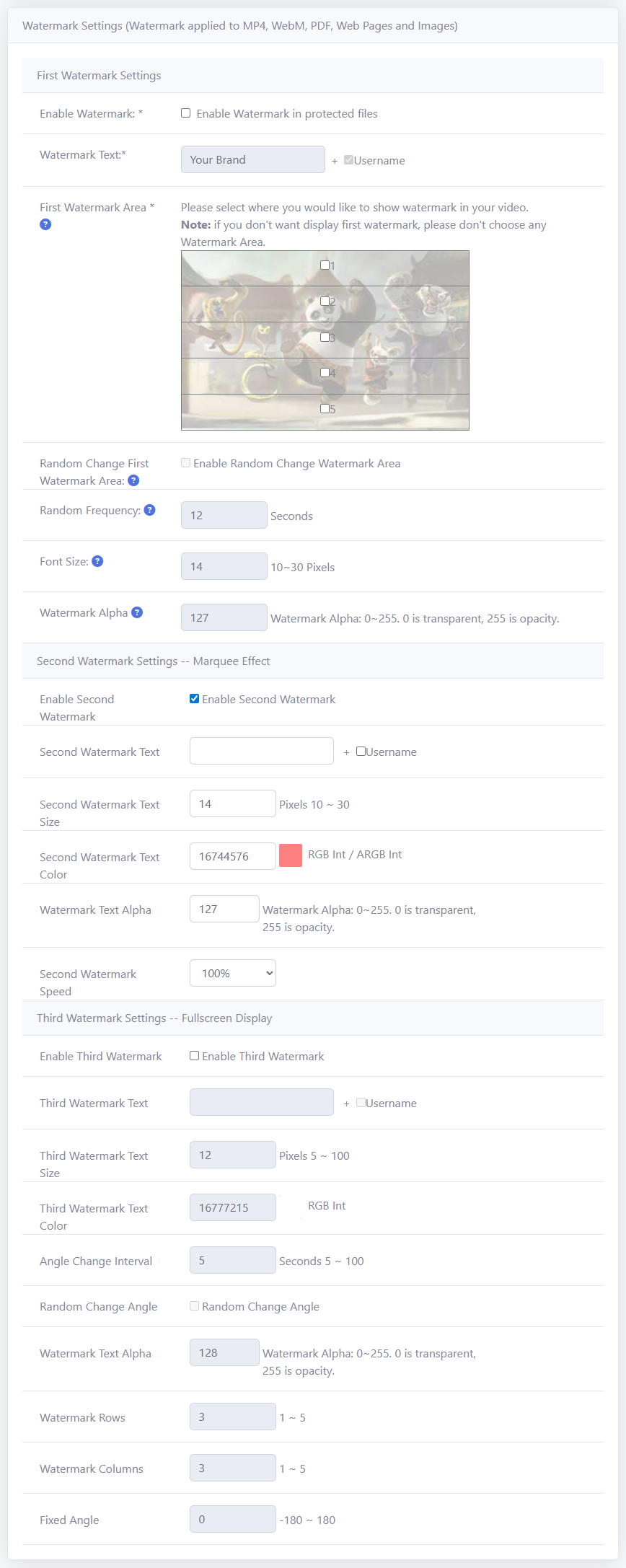
5. Watermark Settings. We highly recommend that you open Watermark.
Dynamic Watermark can show users' personal information. For example, user's mobile phone number, passport number, user id and so on. It's not for showing your company logo. Your company logo can be directly encode into videos. Dynamic Watermark can be used for Legal evidence purpose. People won't record the video when they see their mobile phone number or passport number showing on it. For watermark settings, please select Username. When you create user in DRM-X 5.0 Account, you can use user's mobile phone number as Username. You can also integrate with your web site and customize watermark text. We recommend that you open Second Watermark. Click the color block to open the color selection window, where you can freely choose the watermark color using the color palette and hue slider to enhance watermark security. It supports both Windows and macOS. The third watermark is a full-screen overlay watermark that can be combined with user information to further enhance protection against unauthorized recording.
License Rights Settings:
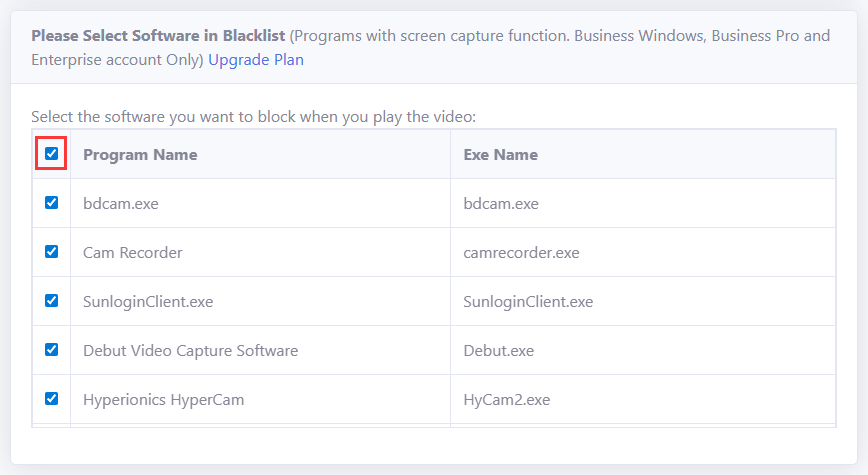
6. For Blacklist, please select all.
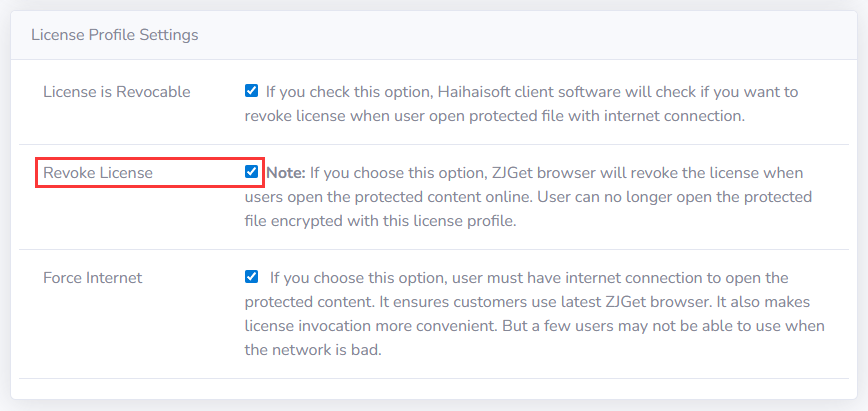
7. Revoke License.
If your contents are cracked, you can select Revoke License option in License Profile. It will revoke license when user open your content with Internet Connection. Then, you can force users upgrade to the latest client software and resend license. If you find someone records your video (by watermark text you can know which user) or someone asks for refund, you can revoke his license. You can also revoke someone's license in Users Revoke. Only Enterprise Account can use this function.
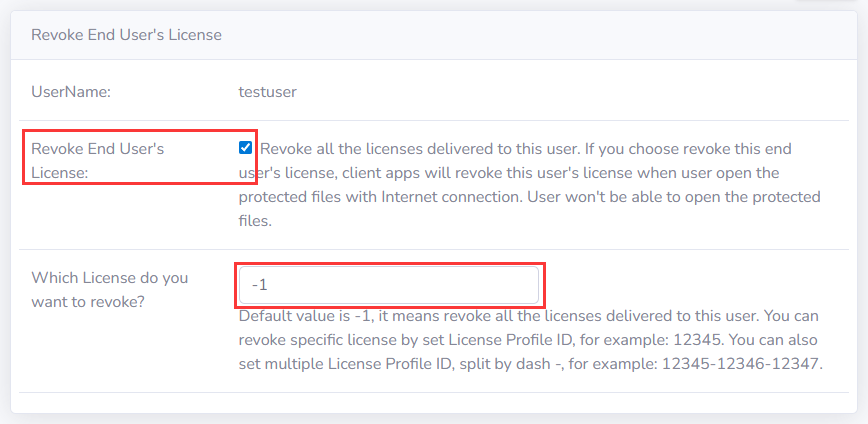
Revoke License:
Revoke End User's License: Enter the "user" management page, click "Revoke" to enter the page to revoke the user license.
8. Enable Smart Prevent Screen Recording.
Security Settings (Enterprise accounts only)
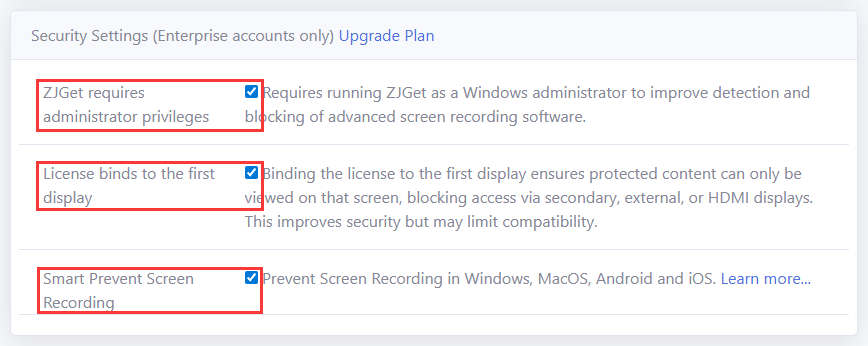
In DRM-X 5.0, Haihaisoft Smart Prevent Screen Recording Technology can automatically and effectively detect Screen Recording software. It helps content providers better control the Rights of their DRM-X 5.0 protected content.
Haihaisoft Smart Prevent Screen Recording Technology is big enhancement compare previous Haihaisoft Blacklist feature. Blacklist can only prevent screen recording or capturing software in the Blacklist, currently nearly about 200 common screen recording and capturing software. But Smart Prevent Screen Recording Technology is much smarter than Blacklist, it detects all major currently screen recording software and even future screen recording software.
To turn on Haihaisoft Smart Prevent Screen Recording Technology, you have to purchase DRM-X 5.0 Enterprise account, and in Rights->Edit Rights, please choose Enable Haihaisoft Smart Prevent Screen Recording Technology.
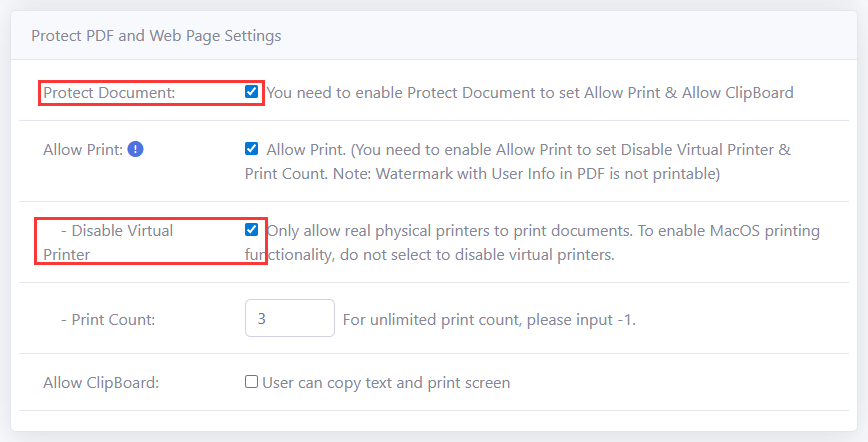
9. PDF Document.
Please select Check "Protect Document" option. If you allow your clients to print PDF, we highly recommend that you select "Disable Virtual Printer" option and set limited "Print Count". Please don't select "Allow Clipboard" option.
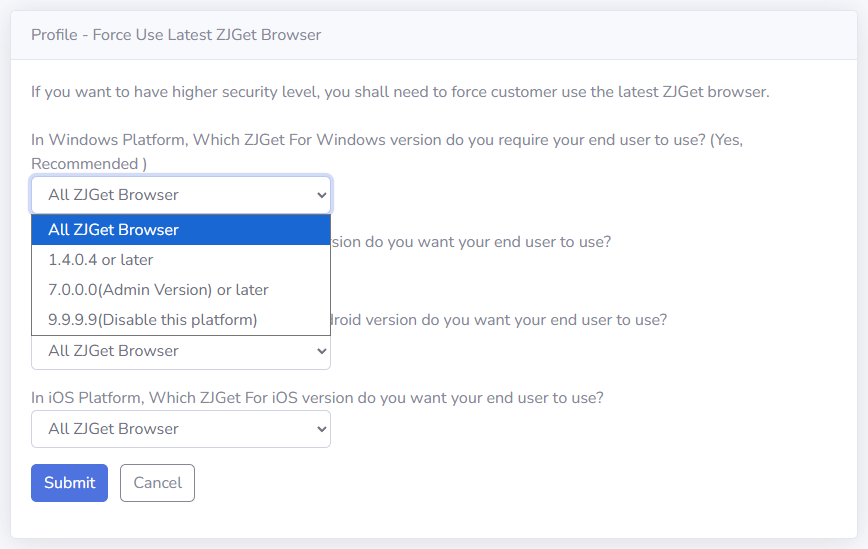
10. Force Use Latest ZJGet Browser.
You can enhance security level by using the latest ZJGet. If you don't know whether it's necessary to upgrade to the latest ZJGet, you can contact with Haihaisoft Customer Service. You can set it on your DRM-X 5.0 Account: "Account Settings" -> "Force Use Latest ZJGet".
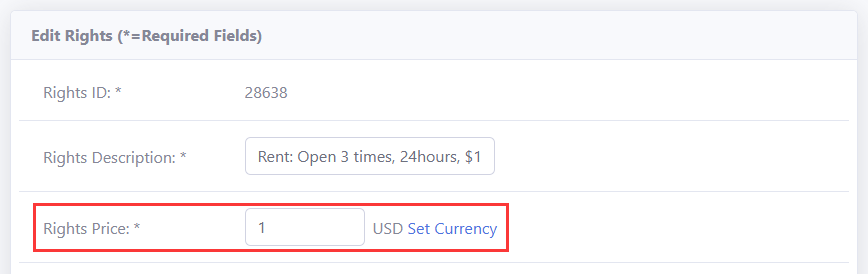
11. If you are haven't integrated DRM-X with your website, Don't set the Rights price to 0.
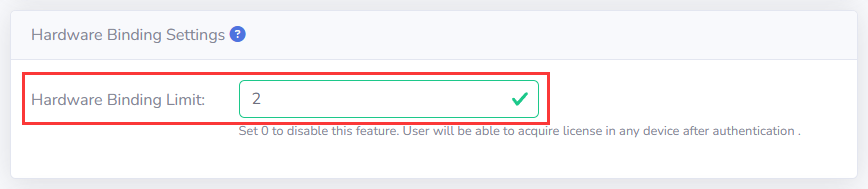
If you don't integrate with your website and use the standard DRM-X Admin. Don't set the Rights price to 0, it prevents users obtain license for an unlimited of times. We recommend that you set the number of hardware bindings for the end user. When hardware binding is enabled, the user can only obtain the license for the specified number of devices.
If you are have integrated DRM-X with your website, we recommended that you enable hardware binding for the end users so that security is optimal. If hardware binding is not enable, you must limit the number of times for user can acquire a license (through integration), which improves security.
Other DRM-X 5.0 Tutorials
 DRM-X 5.0 Introduction Video
DRM-X 5.0 is a new generation of encryption software platform. Haihaisoft provides common DRM-X 5.0 video demo tutorials, including DRM-X 5.0 introduction, video encryption tutorial, webpage encryption tutorial, and how to embed HTML5 video player.
WATCH NOW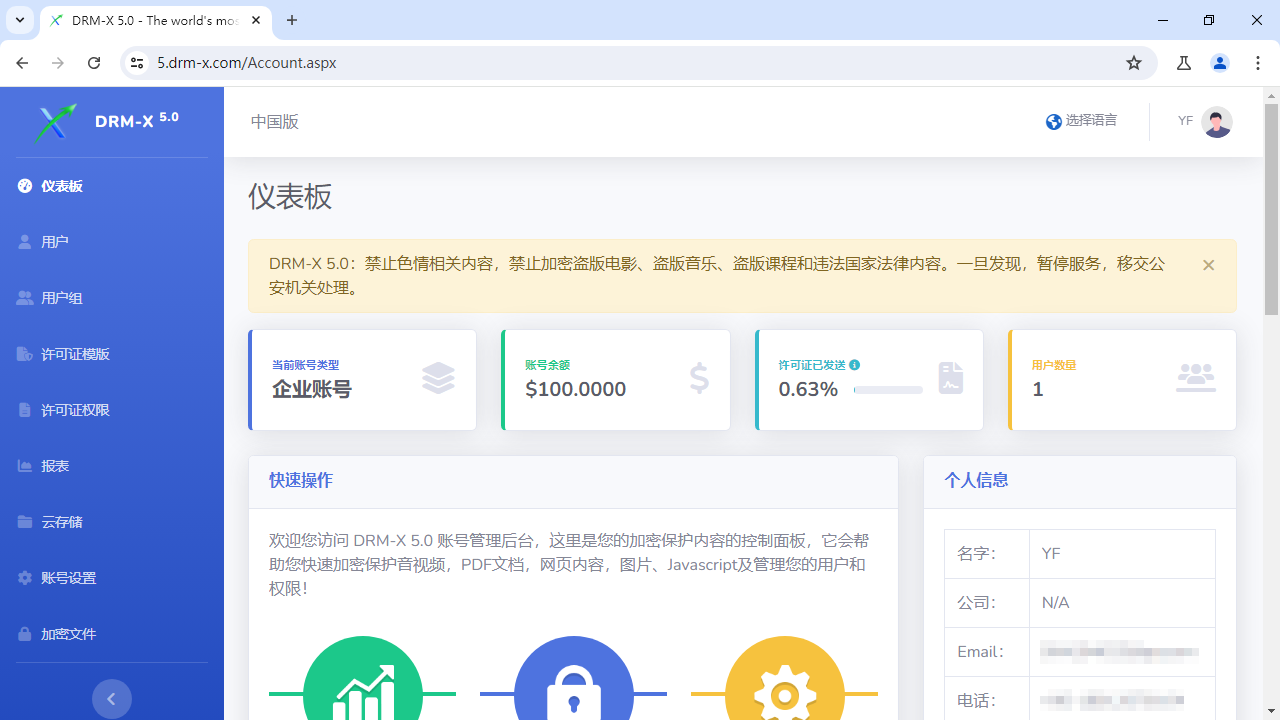 How to Protect Videos with DRM-X 5.0 ZJGet for Windows
This video will demonstrate how to encrypt files on Windows using ZJGet browser.
WATCH NOW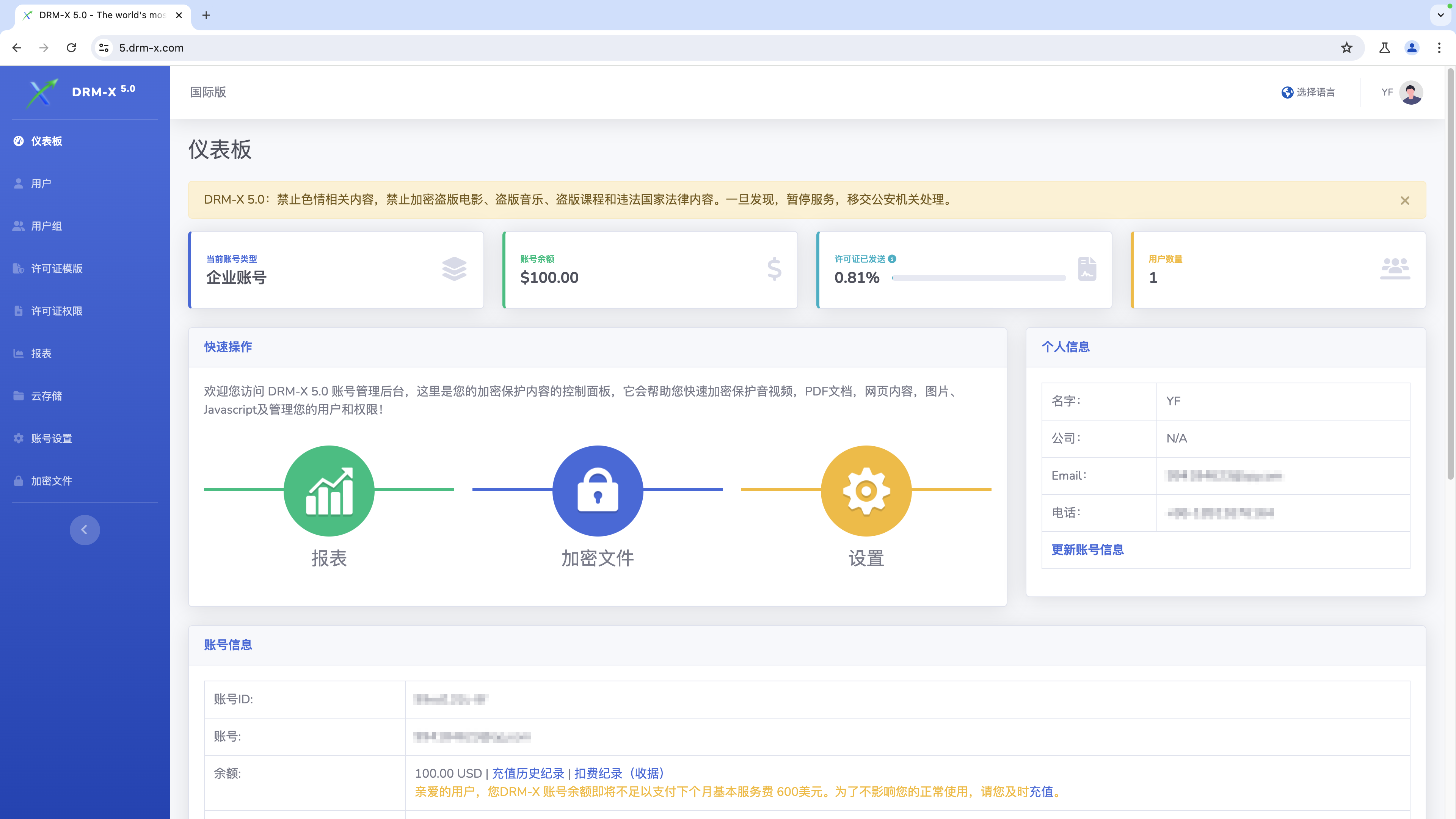 How to Protect Videos with DRM-X 5.0 ZJGet for macOS
This video will demonstrate how to encrypt files on macOS using ZJGet browser.
WATCH NOW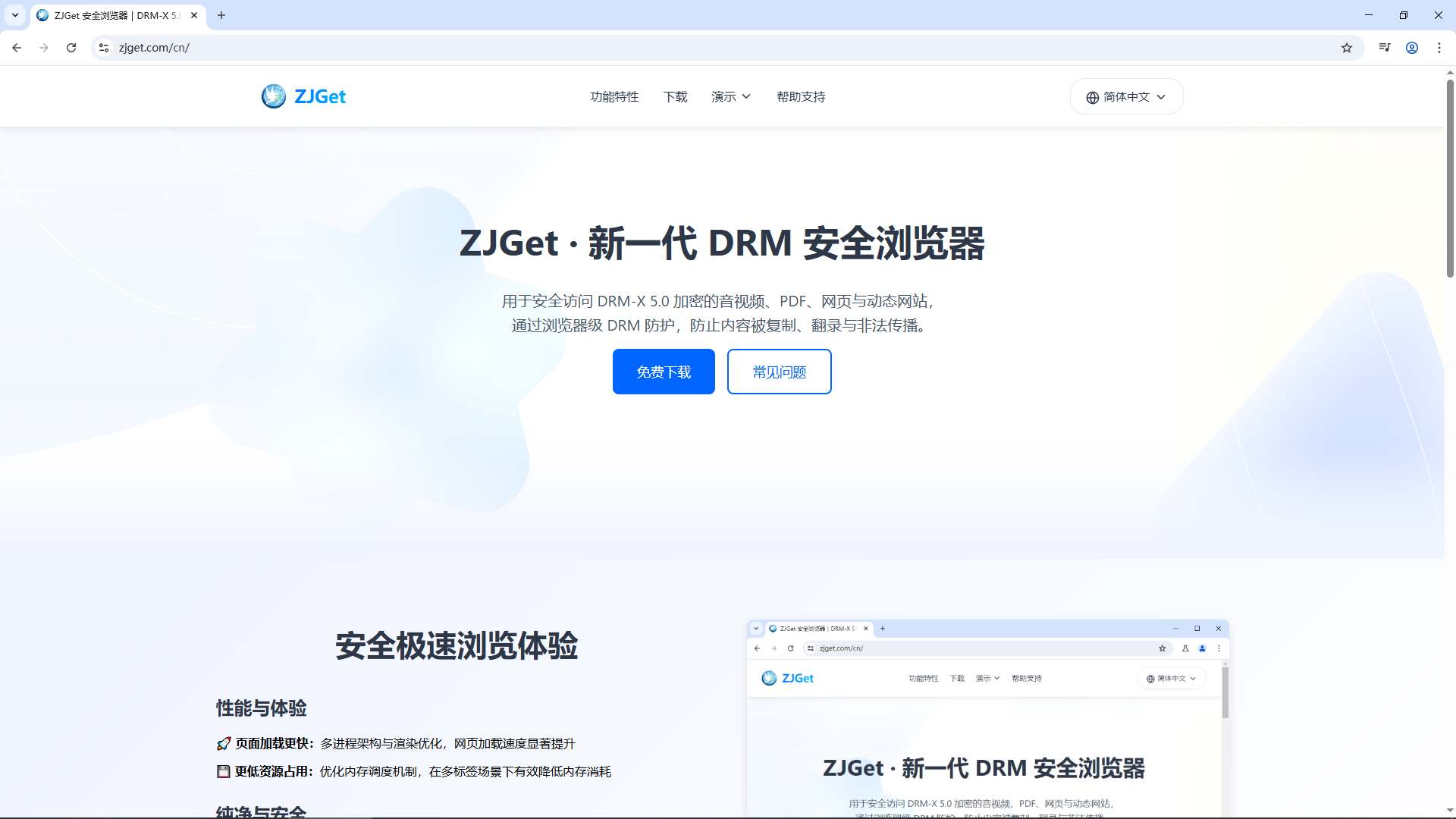 Getting Started with DRM-X 5.0 ZJGet for Windows
This video will show you how to download, install, and open encrypted files on Windows using the ZJGet browser.
WATCH NOW DRM-X 5.0 ZJGet User Guide
ZJGet Browser User Guide. This tutorial will help you easily master the core features and practical tips of the ZJGet browser.
WATCH NOWDRM-X 5.0 ZJGet FAQFrequently Asked Questions (FAQ) about using ZJGet Browser. This section compiles the most useful Q&As to help you overcome any obstacles you may encounter.
WATCH NOWQuestions?
Our reps have answers.
Ask about Haihaisoft products, pricing, implementation, or anything else — our highly trained reps are standing by, ready to help.
Tel: +64 27 507 9959 (New Zealand)
QQ: 1279126286 / 994184623
Contact us on Microsoft Teams
service#haihaisoft.com (replace # into @)
Contact Us