


Protect Videos on macOS Using DRM-X 5.0 ZJGet
Learn how to protect MP4, WebM, MP3 and other media files on macOS using DRM-X 5.0 ZJGet. This step-by-step guide covers creating License Profiles, configuring security rights, encrypting media files locally, and verifying DRM protection.
In this tutorial
Prerequisites
Environment: Must be performed on Windows / macOS system.Tools: Must install and useZJGet Browser to log in and encrypt files.Security: Encryption is performed locally, and files are not uploaded to the server, ensuring data security.
Step 1: Create License Profile (License Profile)
- Log in to the backend, navigate to the
"Protect Files" menu, and click"New Profile" . Name: Input the product or course name.Right and User Groups: Check the corresponding license rights and allow access to the user groups (default is recommended for initial use).Integration Settings: If no website integration is needed, leave the "Product ID" field empty.Advanced Settings: Suggest enabling "License is Revocable" for enhanced security.- Click
"OK" to save.
Step 2: Configure License Rights
- Click
"New Rights" to set basic items (price, open count, expiration date). Core Security: Check"Disable Virtual Machine" and"ZJGet requires administrator privileges" (enhanced screen recording prevention).Display Control: Enable"License binds to the first display" to prevent extended screen recording.Watermark System: Enable triple watermarking (static position, dynamic marquee, fullscreen matrix) based on needs.Blacklist and Protection: Check screen recording software blacklist and enable"Haihaisoft Smart Prevent Screen Recording" for enhanced security.- Click
"OK" to save.
Step 3: Specify Authorized User Groups (User Groups)
- Return to the
"Protect Files" guide page. - In
"Step 3" , check the user groups that are allowed to get the license (e.g., Basic Group). - Click
"Apply" to save.
Step 4: Execute Local Encryption (Encryption)
- In
"Step 4" , select the encryption type (e.g., encrypt video/audio files). Output Settings: Specify the save path, and it is recommended to check"Add _P Suffix" for easy identification.Add Files: Click"Select Files" to add local original files.Start Encryption: Click"Start Encrypt Video Files" .
How to Verify Encryption Effect?
- After encryption, find the generated files with _P suffix.
- Use
ZJGet Browser to open the file. - In the login pop-up, enter the account belonging to the specified "User Group".
- After obtaining the license, you can watch and test the watermark and screen recording prevention effects normally.
Other DRM-X 5.0 Tutorials
 DRM-X 5.0 Introduction Video
DRM-X 5.0 is a new generation of encryption software platform. Haihaisoft provides common DRM-X 5.0 video demo tutorials, including DRM-X 5.0 introduction, video encryption tutorial, webpage encryption tutorial, and how to embed HTML5 video player.
WATCH NOW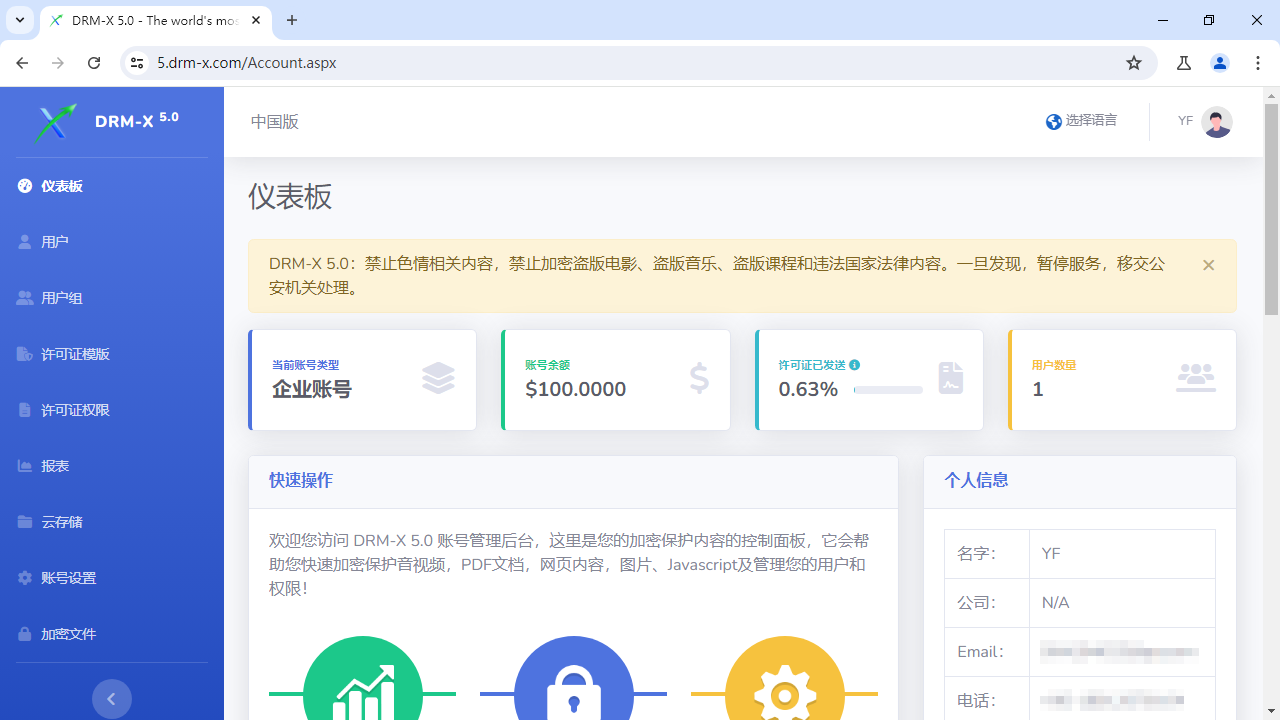 How to Protect Videos with DRM-X 5.0 ZJGet for Windows
This video will demonstrate how to encrypt files on Windows using ZJGet browser.
WATCH NOW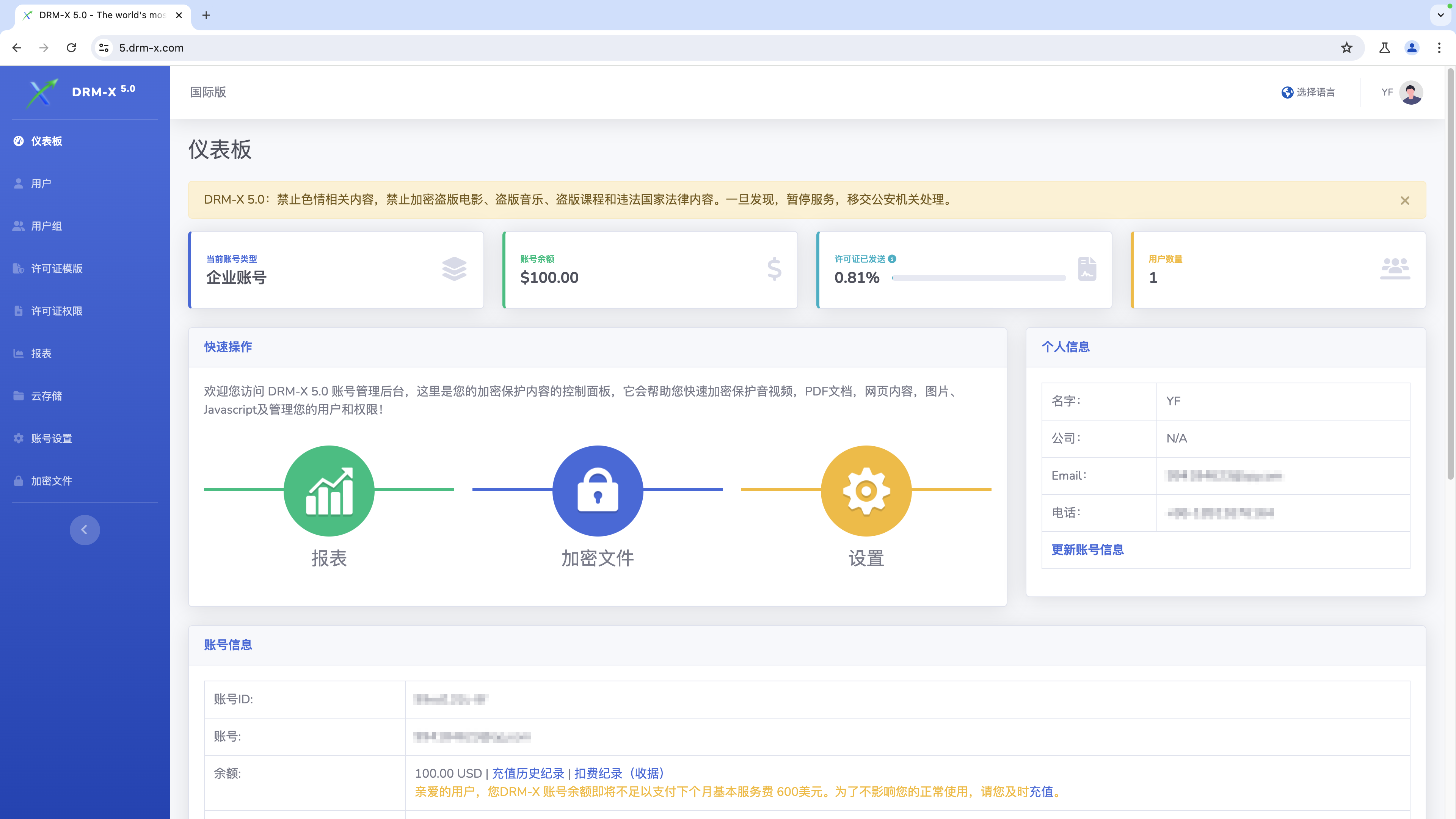 How to Protect Videos with DRM-X 5.0 ZJGet for macOS
This video will demonstrate how to encrypt files on macOS using ZJGet browser.
WATCH NOW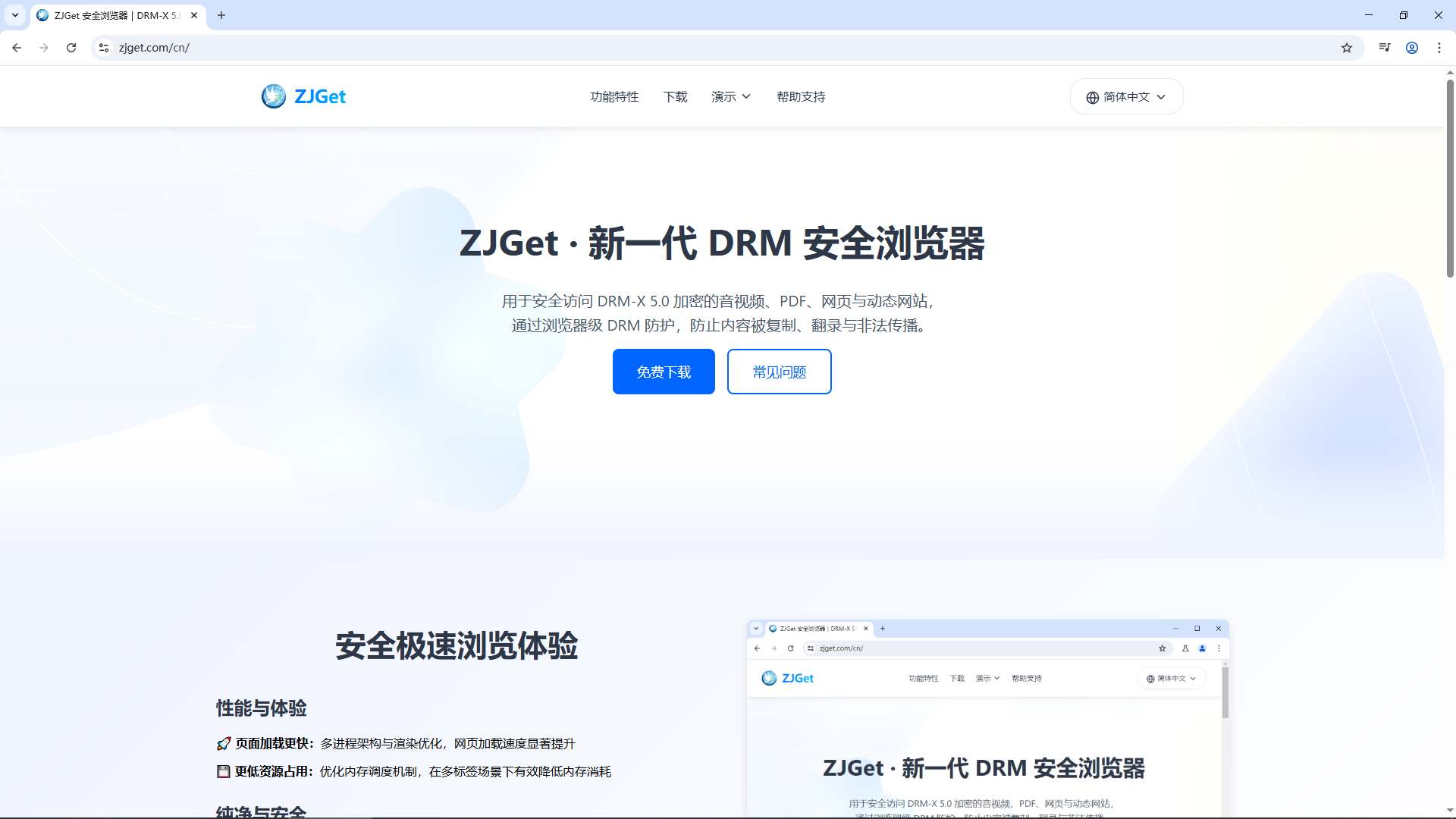 Getting Started with DRM-X 5.0 ZJGet for Windows
This video will show you how to download, install, and open encrypted files on Windows using the ZJGet browser.
WATCH NOW DRM-X 5.0 ZJGet User Guide
ZJGet Browser User Guide. This tutorial will help you easily master the core features and practical tips of the ZJGet browser.
WATCH NOWDRM-X 5.0 ZJGet FAQFrequently Asked Questions (FAQ) about using ZJGet Browser. This section compiles the most useful Q&As to help you overcome any obstacles you may encounter.
WATCH NOWQuestions?
Our reps have answers.
Ask about Haihaisoft products, pricing, implementation, or anything else — our highly trained reps are standing by, ready to help.
Tel: +64 27 507 9959 (New Zealand)
QQ: 1279126286 / 994184623
Contact us on Microsoft Teams
service#haihaisoft.com (replace # into @)
Contact Us