

DRM-X 5.0 Media Packager Tutorial
The DRM-X 5.0 Media Packager is a simple and easy-to-use desktop media encryption tool. You can drag and drop video, audio, PDF files, or an entire course folder directly into the tool, select the corresponding DRM-X 5.0 License Profile, and quickly encrypt your content.
If a course contains multiple videos, you can add multiple files or the entire course folder at once and batch-encrypt them with the same License Profile.
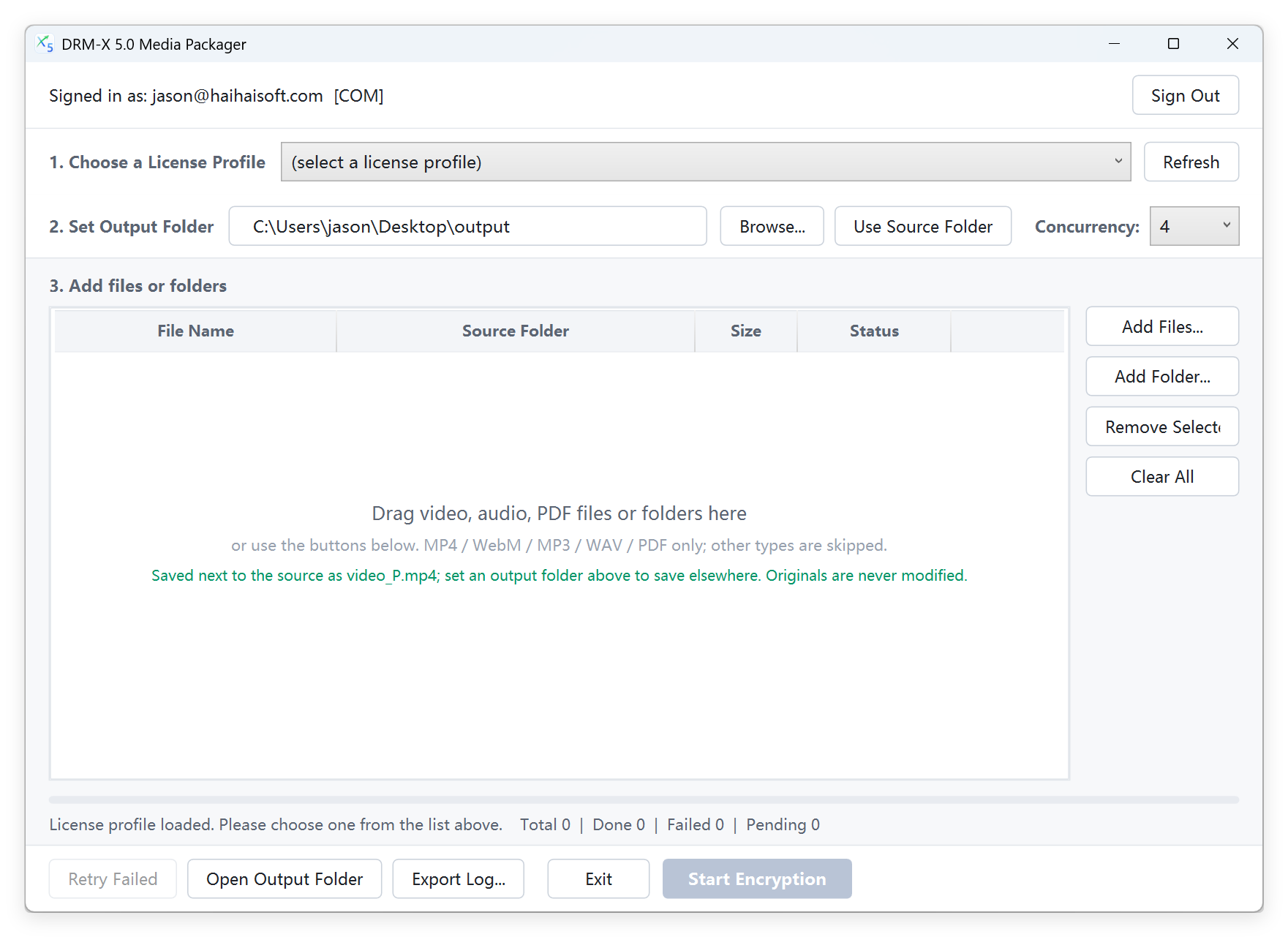
Drag files or an entire course folder, select a License Profile, and start encryption.
A Simpler Way to Encrypt Media with DRM-X 5.0
The DRM-X 5.0 Automatic Batch Encryption Tool is better suited for workflows that require continuous folder scanning, automatic detection of new files, and automatic creation of License Profiles.
If you simply need to select the License Profile for a course and encrypt multiple videos, audio files, or PDFs in that course, the DRM-X 5.0 Media Encryption Tool is simpler and more intuitive.
Drag and Drop to Add
Drag in a single file, multiple files, or an entire course folder without complex configuration.
Batch Encryption
Multiple files in the same course can be encrypted with one License Profile.
Multiple File Formats
Supports common course-content formats including MP4, WebM, MP3, WAV, and PDF.
Concurrent Encryption
Process multiple files at the same time to improve encryption efficiency for large course libraries.
Recommended Use Case
One course uses one License Profile, each course contains multiple video, audio, or PDF files, and you want to encrypt the content through a simple drag-and-drop workflow.
How to Use the DRM-X 5.0 Media Encryption Tool
The entire process only takes a few simple steps.
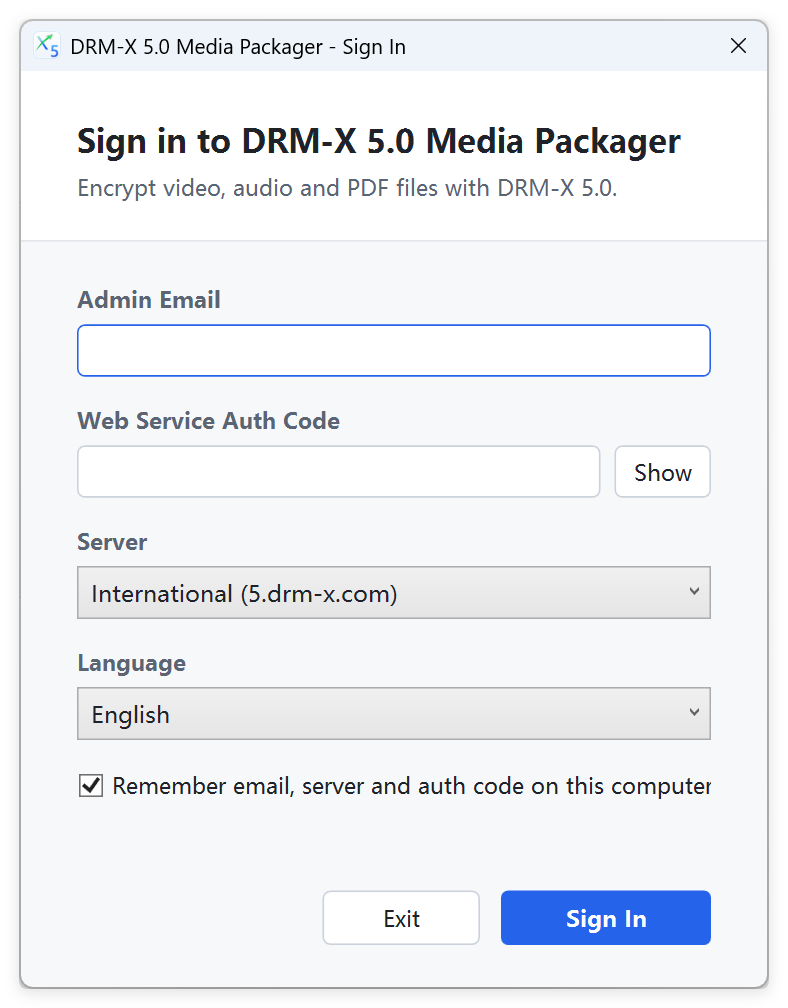
Log in to Your DRM-X 5.0 Account
Launch the DRM-X 5.0 Media Encryption Tool and sign in with your DRM-X 5.0 administrator account and Web Service authentication information.
After a successful login, the tool automatically loads the License Profiles already created in your account.
Select a License Profile
At the top of the tool, use the "Select a License Profile" drop-down list to choose the License Profile you want to use for this encryption task.
A License Profile defines the license and rights policy for the protected content. Before encryption, create the corresponding License Profile in the DRM-X 5.0 administration portal.
For example, if a course contains 30 videos and they all use the same DRM licensing rules, they can all be encrypted with the same License Profile, so you do not need to create a separate License Profile for every video.
Set the Output Folder
Click "Browse" to choose where the encrypted files will be saved.
If you want the encrypted files to be saved in the same folder as the source files, you can also click "Use Source Folder".
Source file:
lesson01.mp4

Encrypted file:
lesson01_P.mp4
DRM-X does not modify the original files. For production course content, we recommend using a separate output folder so the encrypted files can be easily uploaded to a web server, object storage, or CDN.
Add Files or Folders
You can drag files directly into the tool, or click "Add Files" or "Add Folder".
To encrypt an entire course, we recommend dragging the whole course folder directly into the tool.
Course-A
├── Lesson-01.mp4
├── Lesson-02.mp4
├── Lesson-03.mp4
├── Lesson-04.mp4
├── Audio-01.mp3
└── Course-Notes.pdf
The tool automatically adds supported video, audio, and PDF files, while unsupported file types are skipped automatically.
Set the Number of Concurrent Tasks
The DRM-X 5.0 Media Encryption Tool can process multiple files at the same time. Use the "Concurrent Tasks" setting to control how many encryption tasks run simultaneously.
On a typical computer, start with the default setting. If the computer has a faster CPU and SSD storage, you can increase the number of concurrent tasks.
Encryption speed is affected not only by CPU performance, but also by the read speed of the source files and the write speed of the encrypted output files. For higher encryption throughput, we recommend placing the input files and output folder on different physical disks, which can reduce the performance bottleneck caused by reading and writing on the same disk at the same time.
Start Encryption
After confirming the License Profile, output folder, file list, and number of concurrent tasks, click "Start Encryption".
The tool automatically processes all pending files in the list, and you can monitor the status of each file in real time.
If some files fail to encrypt, use the "Retry Failed Items" to process them again.
How to Batch Encrypt an Entire Course
An online course usually contains multiple chapters and multiple videos. If all of this content uses the same DRM licensing policy, you can use one License Profile to protect the entire course.
After selecting the License Profile, drag the entire course folder into the DRM-X 5.0 Media Encryption Tool to batch process all supported content in the course.
Java Programming Course
│
├── Chapter 1
│   ├── 01-Introduction.mp4
│   └── 02-Environment.mp4
│
├── Chapter 2
│   ├── 01-Basic-Syntax.mp4
│   └── 02-Variables.mp4
│
└── PDF
    └── Course-Notes.pdf
Can One License Profile Encrypt Multiple Videos?
If multiple files in a course use the same DRM rights settings, you usually do not need to create a separate License Profile for each video.
A more common management approach is: create one License Profile per course, then use that profile to encrypt all content in the course.
What Is the Difference Between the Media Encryption Tool and the Automatic Batch Encryption Tool?
Both tools can encrypt multiple files, but they are designed for different workflows.
| Feature | Media Encryption Tool | Automatic Batch Encryption Tool |
|---|---|---|
| Manually add files | Supported | Supported |
| Drag and drop multiple files | Supported | — |
| Drag and drop an entire course folder | Supported | — |
| Batch encrypt multiple files | Supported | Supported |
| Automatically scan folders | — | Supported |
| Automatically detect new files | — | Supported |
| Automatically create License Profiles | — | Supported |
| Routine course encryption | Recommended | Supported |
| HTML5 animation encryption | — | Supported |
| Automated encryption workflow | — | Recommended |
If you only need to select the License Profile for a course and batch encrypt multiple files in that course, we recommend using the DRM-X 5.0 Media Encryption Tool.
If you need continuous folder monitoring and automatic processing of newly added files, or automatically create License Profiles based on folders, use the DRM-X 5.0 Automatic Batch Encryption Tool.
DRM-X 5.0 Content Protection Workflow
DRM-X manages content encryption and user license authorization separately. As a result, the same encrypted file can receive different usage permissions based on the user, device, and authorization conditions, without generating a separate video file for each user.
Where Can Encrypted Files Be Stored?
Files encrypted with DRM-X 5.0 can still be stored and distributed like ordinary files.
Web Server
Store them directly on your own web server.
Object Storage
Can be used with common cloud object storage services.
CDN
Suitable for large-scale online video delivery.
LMS
Suitable for online education and learning management systems.
Frequently Asked Questions
Does the DRM-X 5.0 Media Encryption Tool support batch encryption?
Yes. You can add multiple videos, audio files, or PDFs at the same time, or add an entire course folder directly.
Can I Encrypt an Entire Course at Once?
Yes. Simply drag the entire course folder into the tool, and the tool will automatically add all supported files.
Does Each Video Need Its Own License Profile?
Usually not. Multiple videos in the same course can use the same License Profile.
Can I Batch Encrypt MP4 Videos?
Yes. You can add and encrypt multiple MP4 video files at once.
Can I Encrypt PDF Files?
Yes. In addition to video and audio, PDF document encryption is also supported.
Will Encryption Modify the Original Files?
No. The tool creates new protected files and does not directly modify the original content.
Other DRM-X 5.0 Tutorials
 DRM-X 5.0 Introduction Video
DRM-X 5.0 is a new generation of encryption software platform. Haihaisoft provides common DRM-X 5.0 video demo tutorials, including DRM-X 5.0 introduction, video encryption tutorial, webpage encryption tutorial, and how to embed HTML5 video player.
WATCH NOW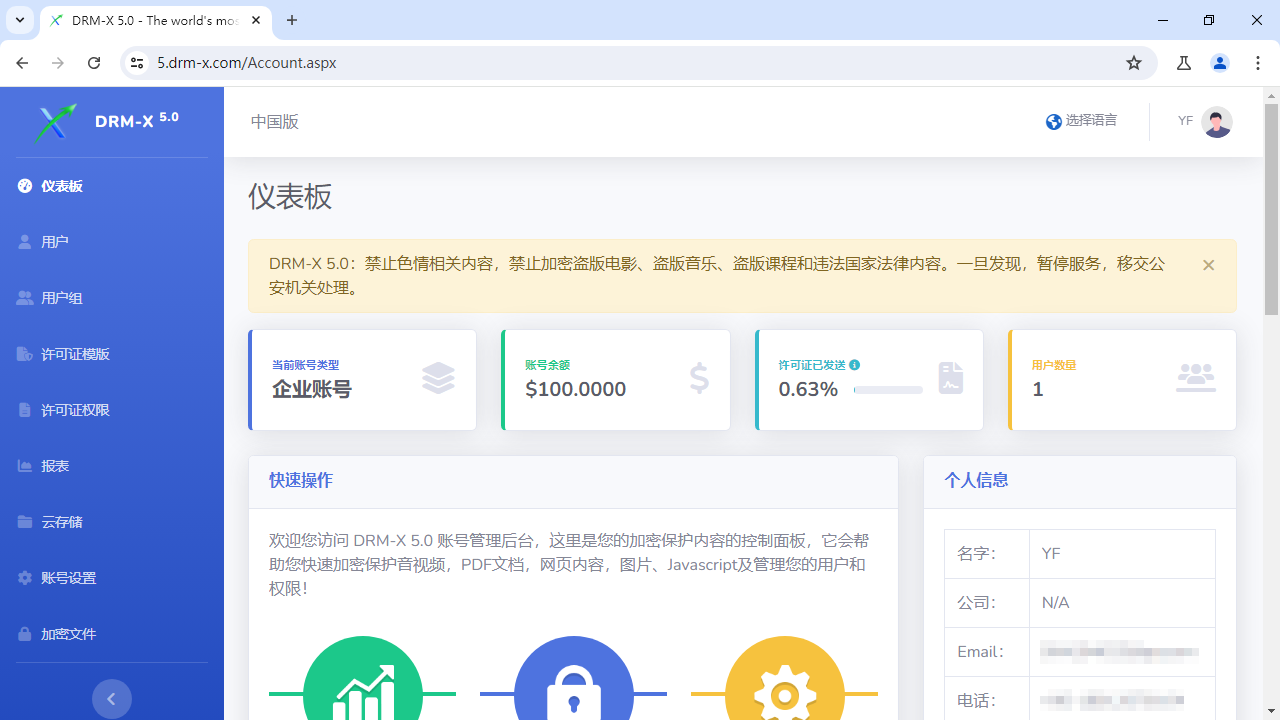 How to Protect Videos with DRM-X 5.0 ZJGet for Windows
This video will demonstrate how to encrypt files on Windows using ZJGet browser.
WATCH NOW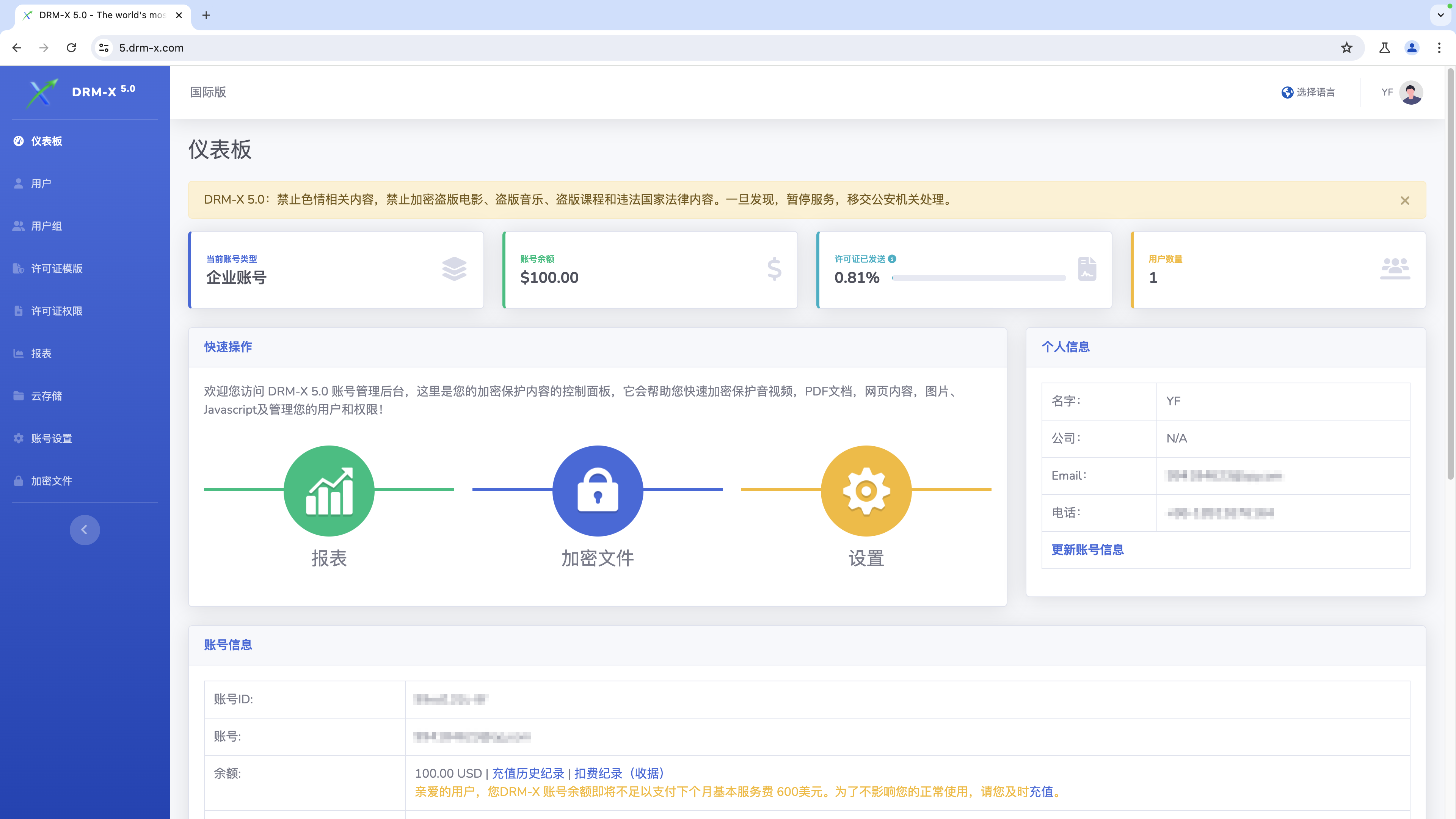 How to Protect Videos with DRM-X 5.0 ZJGet for macOS
This video will demonstrate how to encrypt files on macOS using ZJGet browser.
WATCH NOW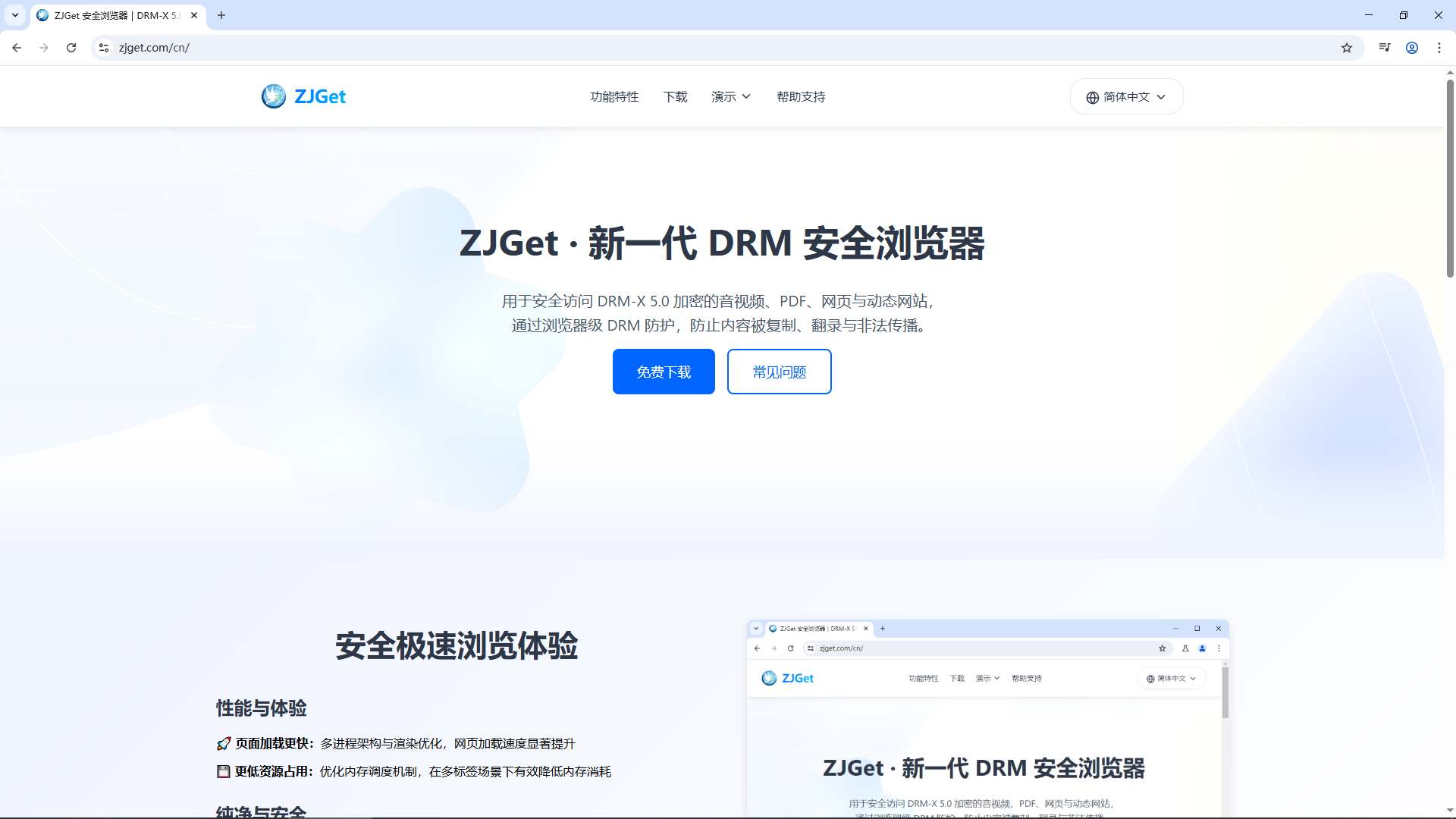 Getting Started with DRM-X 5.0 ZJGet for Windows
This video will show you how to download, install, and open encrypted files on Windows using the ZJGet browser.
WATCH NOW DRM-X 5.0 ZJGet User Guide
ZJGet Browser User Guide. This tutorial will help you easily master the core features and practical tips of the ZJGet browser.
WATCH NOWDRM-X 5.0 ZJGet FAQFrequently Asked Questions (FAQ) about using ZJGet Browser. This section compiles the most useful Q&As to help you overcome any obstacles you may encounter.
WATCH NOWQuestions?
Our reps have answers.
Ask about Haihaisoft products, pricing, implementation, or anything else — our highly trained reps are standing by, ready to help.
Tel: +64 27 507 9959 (New Zealand)
QQ: 1279126286 / 994184623
Contact us on Microsoft Teams
service#haihaisoft.com (replace # into @)
Contact Us