

ZJGet for iOS User Guide
ZJGet for iOS is the secure browser and media player for DRM-X 5.0 protected content. It enables secure online streaming and offline playback of encrypted videos, audio, and HTML content while providing a seamless DRM experience on iPhone and iPad.
Supported Formats
Media Files: Video: MP4, WebM; Audio: MP3, WAVWeb Content: Encrypted HTML web pages
In this tutorial
Cross-Platform Compatibility and iOS-Specific Notes
DRM-X 5.0 provides comprehensive cross-platform support, including Windows, macOS, Android, and iOS.
Recommended Solution for Mobile Platforms: If PDF content needs to be protected and viewed on mobile devices, content providers should first convert the PDF file into HTML format before applying DRM protection.
Part 1: ZJGet for iOS User Guide
1. Online Playback of Encrypted Audio and Video
ZJGet features a built-in intelligent media detection mechanism that provides users with a seamless and secure online playback experience.
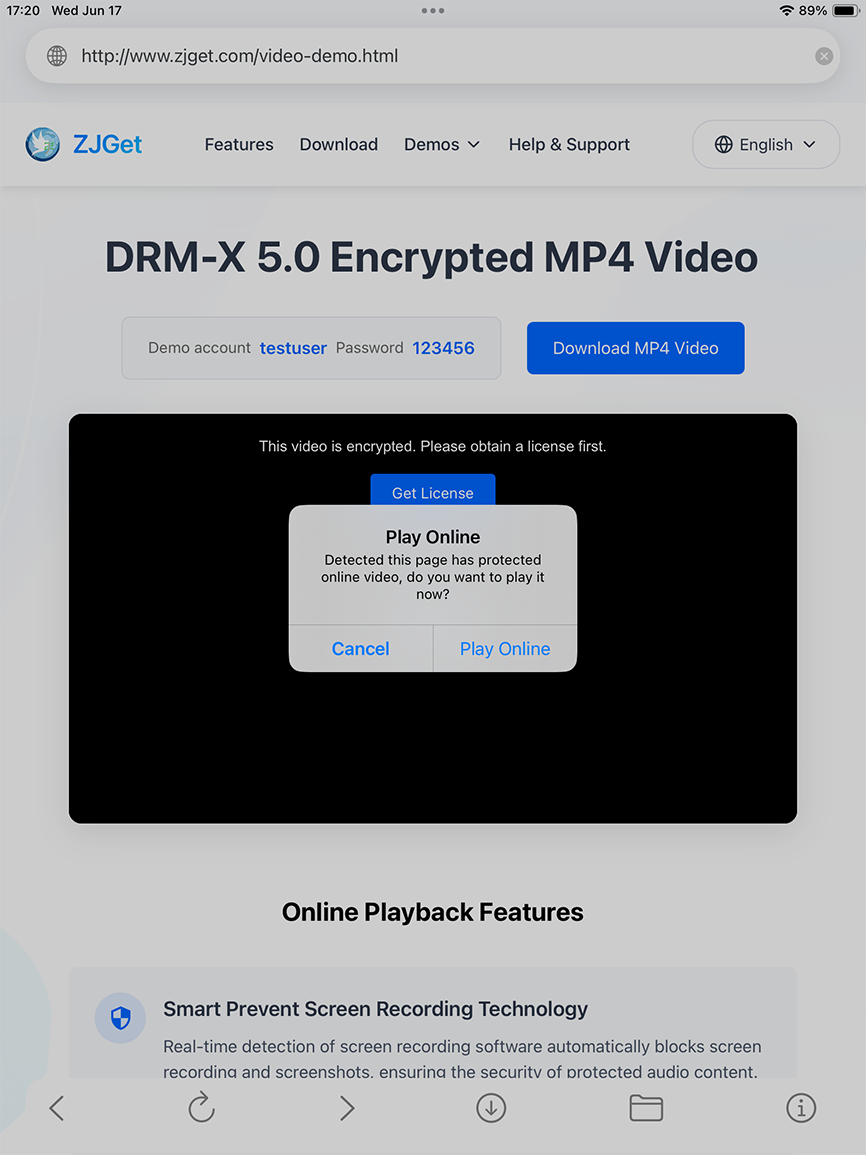
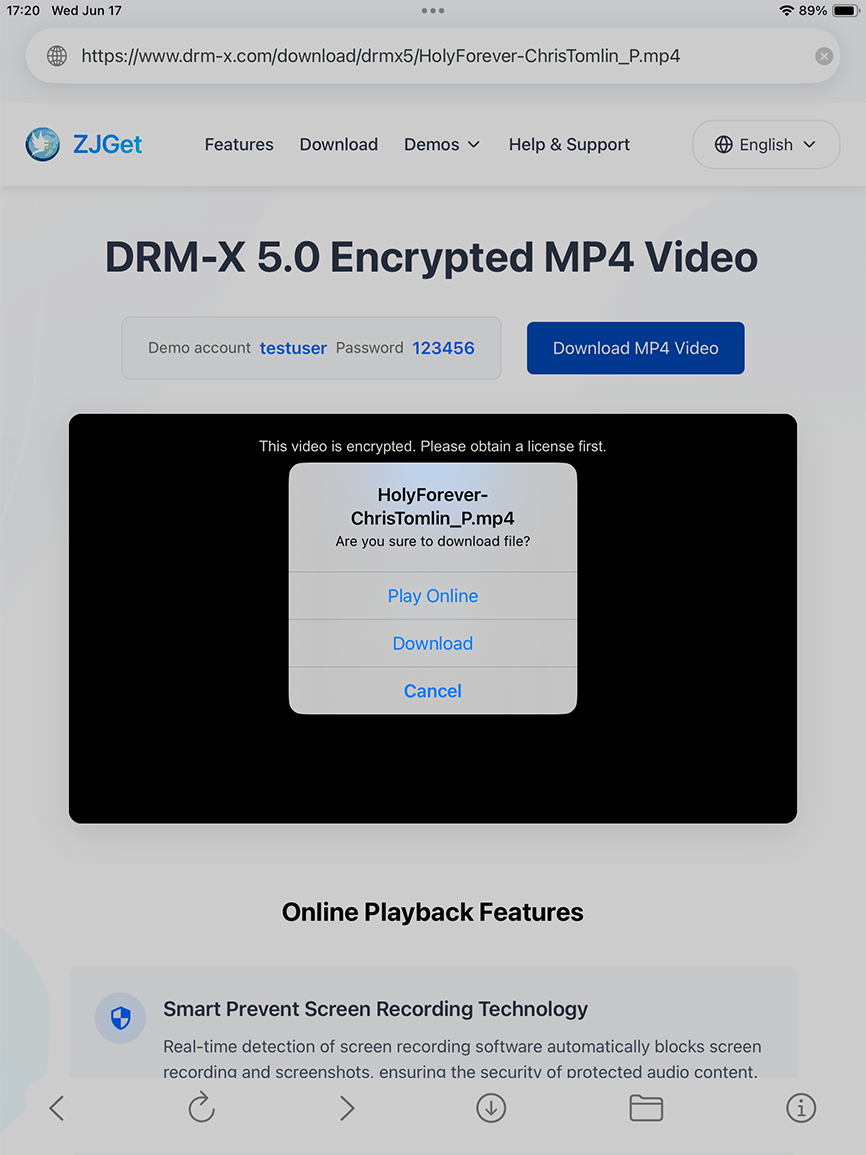
2. Downloading and Local Playback
For scenarios where network connectivity is limited or offline viewing is required, ZJGet provides comprehensive download and file management capabilities.
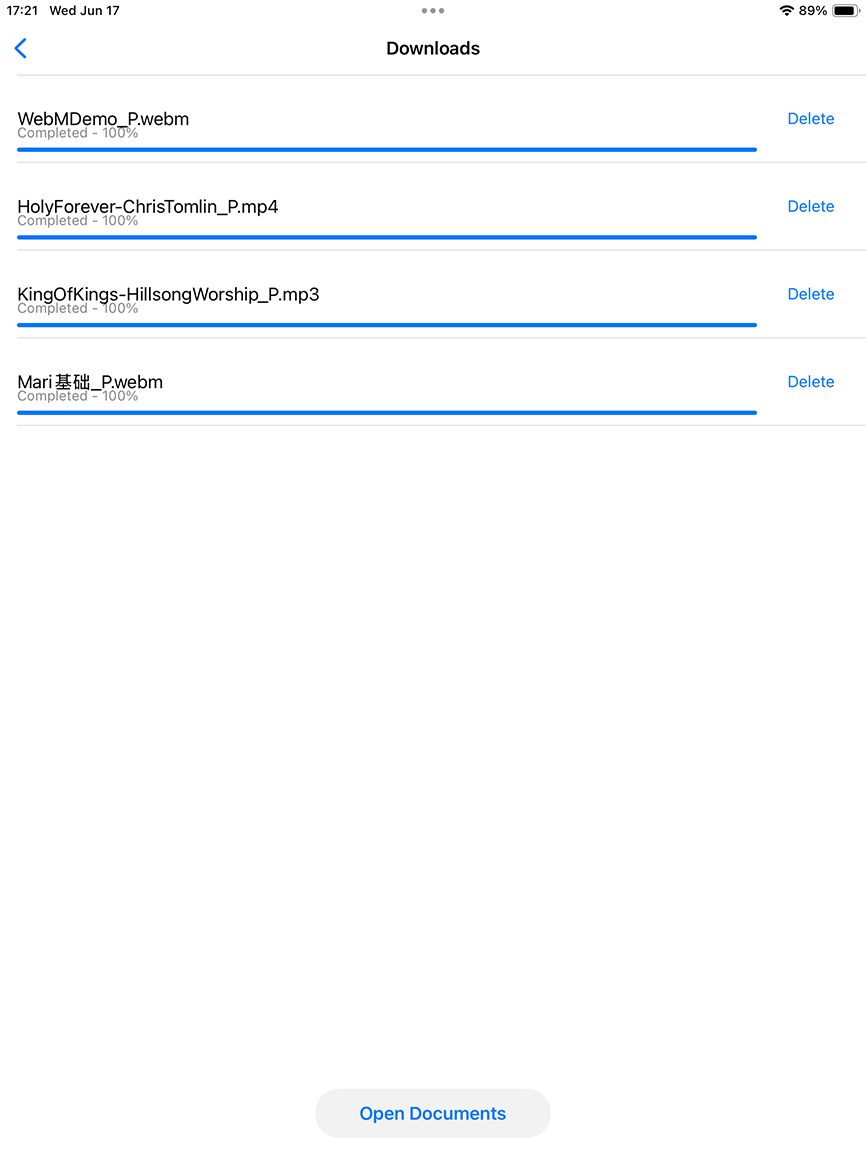
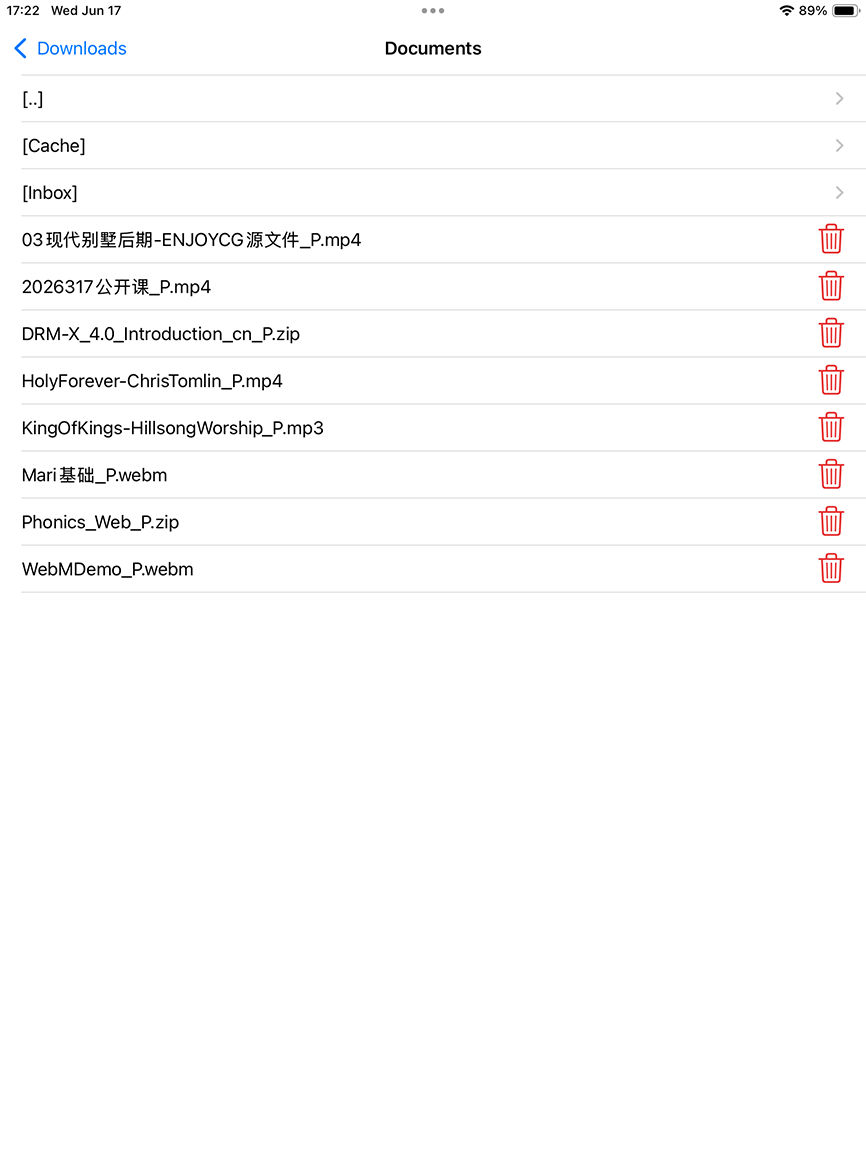
3. Overview of Main Menu Features
Tap the Folder icon in the lower-right corner of the ZJGet interface to access the Main Menu, which provides the following essential tools and features:
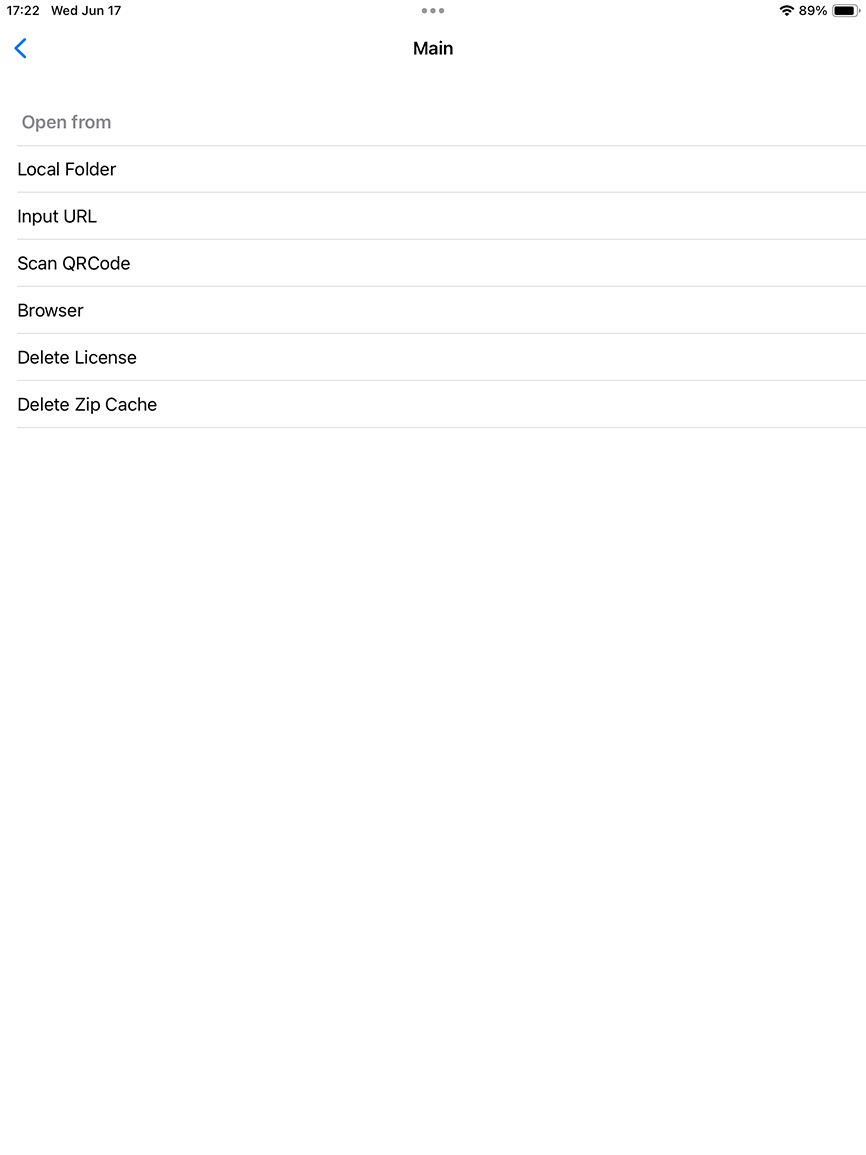
Local Folder: Provides one-tap access to the file management interface, where users can view and directly play encrypted multimedia files that have been downloaded and stored locally on their iOS devices.Input URL: Offers a convenient URL input field. Users can directly paste or enter the full URL of an encrypted video or audio file (for example, https://www.drm-x.com/.../file.mp4) and tapPlay in the upper-right corner to start playback immediately.Scan QR Code: Content providers can generate a QR code containing the complete, absolute URL of an encrypted audio or video file, for example: https://www.drm-x.com/download/drmx5/HolyForever-ChrisTomlin_P.mp4 By selectingScan QR Code , users can scan the QR code and instantly access secure cloud-based playback of the protected media content.Browser: Returns users directly to the built-in secure browser, allowing them to continue browsing web pages without interruption.Delete License: Allows users to manually remove all DRM licenses currently stored on the iOS device.Delete Cache: Enables one-click cleanup of temporary cache files generated, helping free up device storage space.
Part 2: DRM-X 5.0 Content Distribution (Embedding) Guide for Content Providers
1. Embed DRM-X 5.0 Encrypted Videos in a Web Page
To enable ZJGet for iOS to accurately detect DRM-X 5.0 protected media embedded in a web page and seamlessly launch the built-in secure player, content providers should follow the technical specifications below when embedding video content into web pages or online courses.
Requirement 1: Hidden DOM Element Identification
Use the official DRM-X 5.0 video embedding code to embed audio or video content into your web page:
The embedding code automatically generates a special hidden div element with its id attribute set to
For details: How to embed DRM-protected HTML5 video players with iOS compatibility
Requirement 2: Standard Hyperlink Distribution
If you would like to provide users with the flexibility to choose between
2. Cross-Platform Secure Distribution for PDF on iOS
For customers who need to protect important PDF documents and require strong anti-copying and anti-screen-capture protection on iOS devices, the following standard workflow is strongly recommended:
Convert the PDF Format: Use a conversion tool to transform the original PDF document into standard HTML5 web pages.Encrypt the Content: Login to the DRM-X 5.0 Administration Center and apply DRM protection directly to the converted HTML pages.Cloud Deployment
Option 1: Your Own Web Server: Upload the protected HTML file to your own web server.Option 2: DRM-X 5.0 Built-in Cloud Storage: No dedicated server? Use the built-in cloud storage service provided by DRM-X 5.0. If you do not have your own server, or prefer to avoid the complexity of server configuration and maintenance, simply upload the protected HTML file to the DRM-X 5.0 cloud storage service and share the generated link directly with your iOS users.Advanced Option: Build Your Own Online Document Library: Content providers can create an index web page that organizes and presents download links to multiple encrypted HTML files in a unified layout, effectively creating a dedicated online document library. The document library page can then be uploaded to the DRM-X 5.0 cloud storage service. As a result, content providers only need to distribute a single link to the document library page, allowing iOS users to conveniently browse, select, and read various protected documents from one centralized portal.
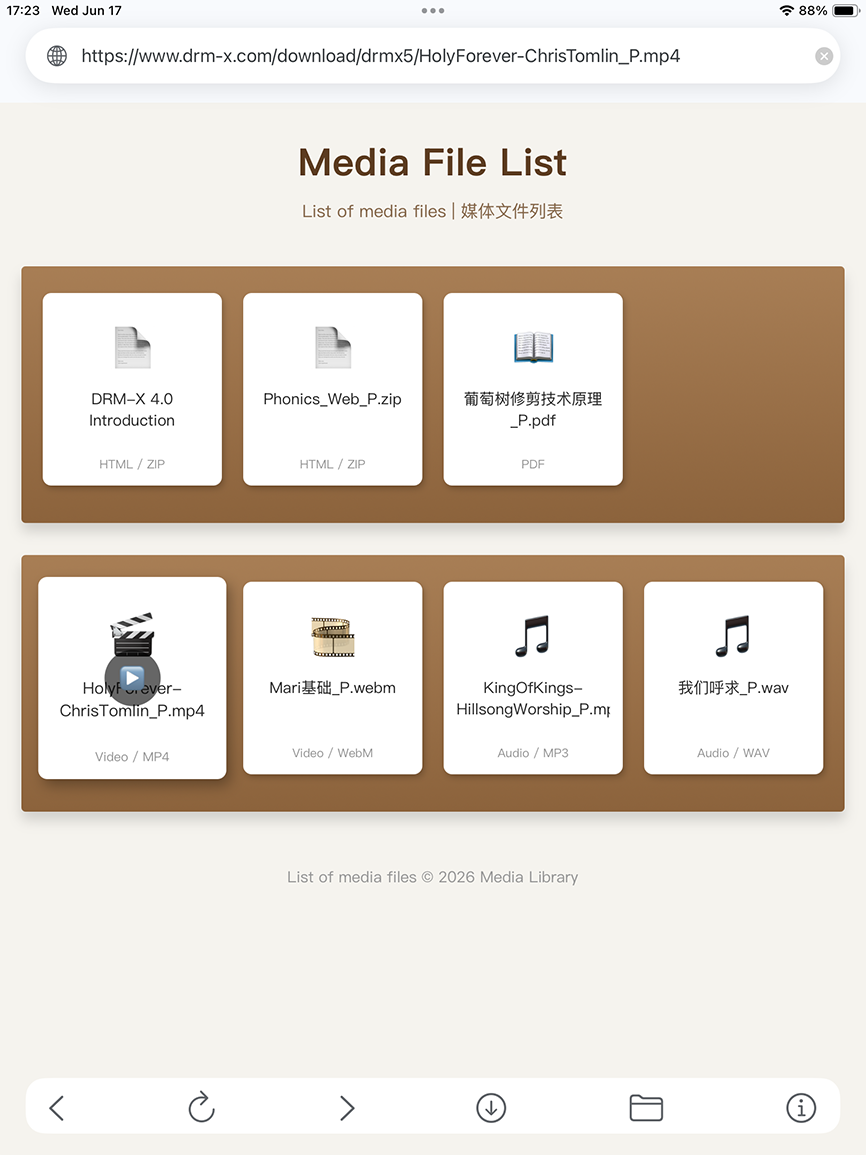
3. File Distribution for Content Providers Without a Server
If content providers do not have their own web server but want to quickly launch an online distribution service for encrypted audio and video content, they can take full advantage of the DRM-X 5.0 fully managed ecosystem.
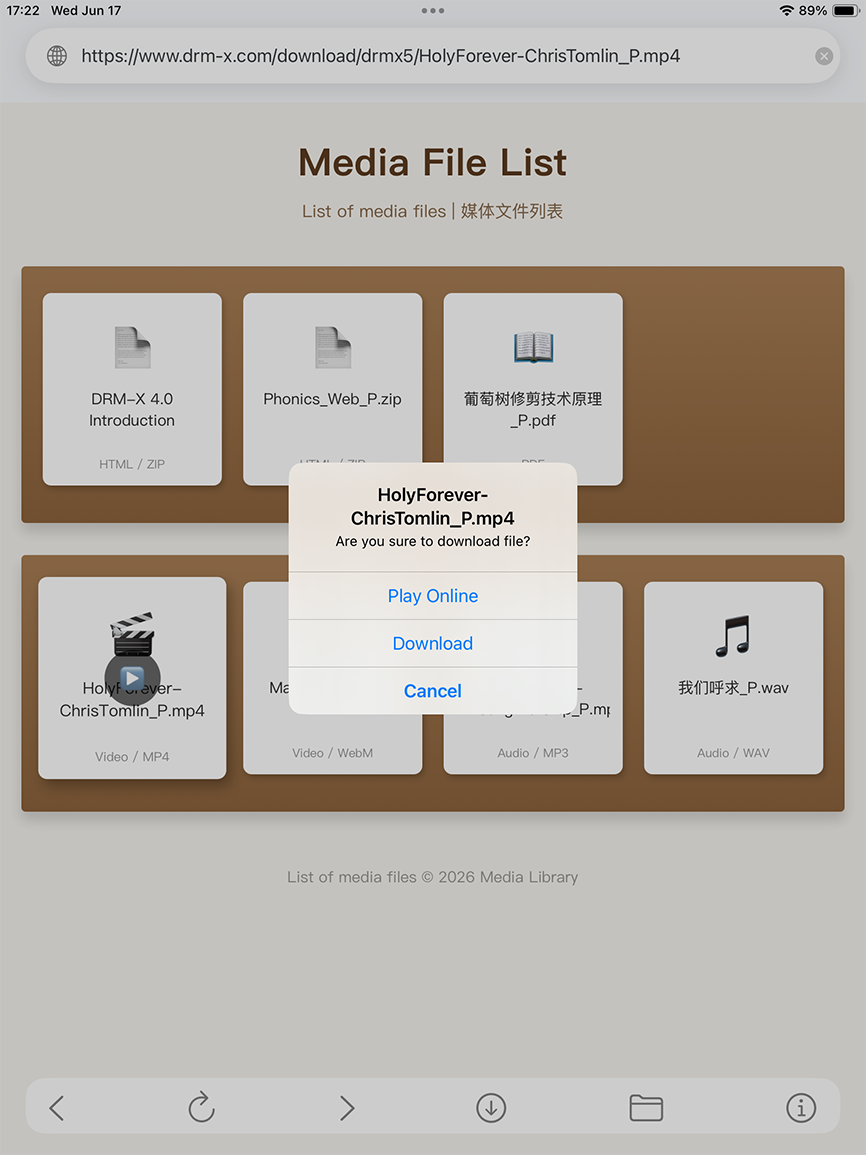
Upload to Cloud Storage: Simply upload encrypted MP4, WebM, MP3, WAV, or HTML files directly to the DRM-X 5.0 cloud storage platform.Create a Media Playlist Page: Content providers can use AI tools to quickly generate a structured media playlist web page and configure absolute hyperlinks for each encrypted audio or video file within the playlist. Once the playlist page is created, upload it to the DRM-X 5.0 cloud storage service for hosting. When iOS users access the hosted playlist page through the ZJGet browser, they can simply click any media hyperlink in the list. The system will automatically display an interaction dialog, allowing users to choose either:Online Playback - Stream and play the protected content immediately.Download - Save the protected file locally for offline access.
This approach provides an efficient, centralized, and secure media distribution and viewing experience.
Other DRM-X 5.0 Tutorials
 DRM-X 5.0 Introduction Video
DRM-X 5.0 is a new generation of encryption software platform. Haihaisoft provides common DRM-X 5.0 video demo tutorials, including DRM-X 5.0 introduction, video encryption tutorial, webpage encryption tutorial, and how to embed HTML5 video player.
WATCH NOW How to Protect Videos with DRM-X 5.0 ZJGet for Windows
This video will demonstrate how to encrypt files on Windows using ZJGet browser.
WATCH NOW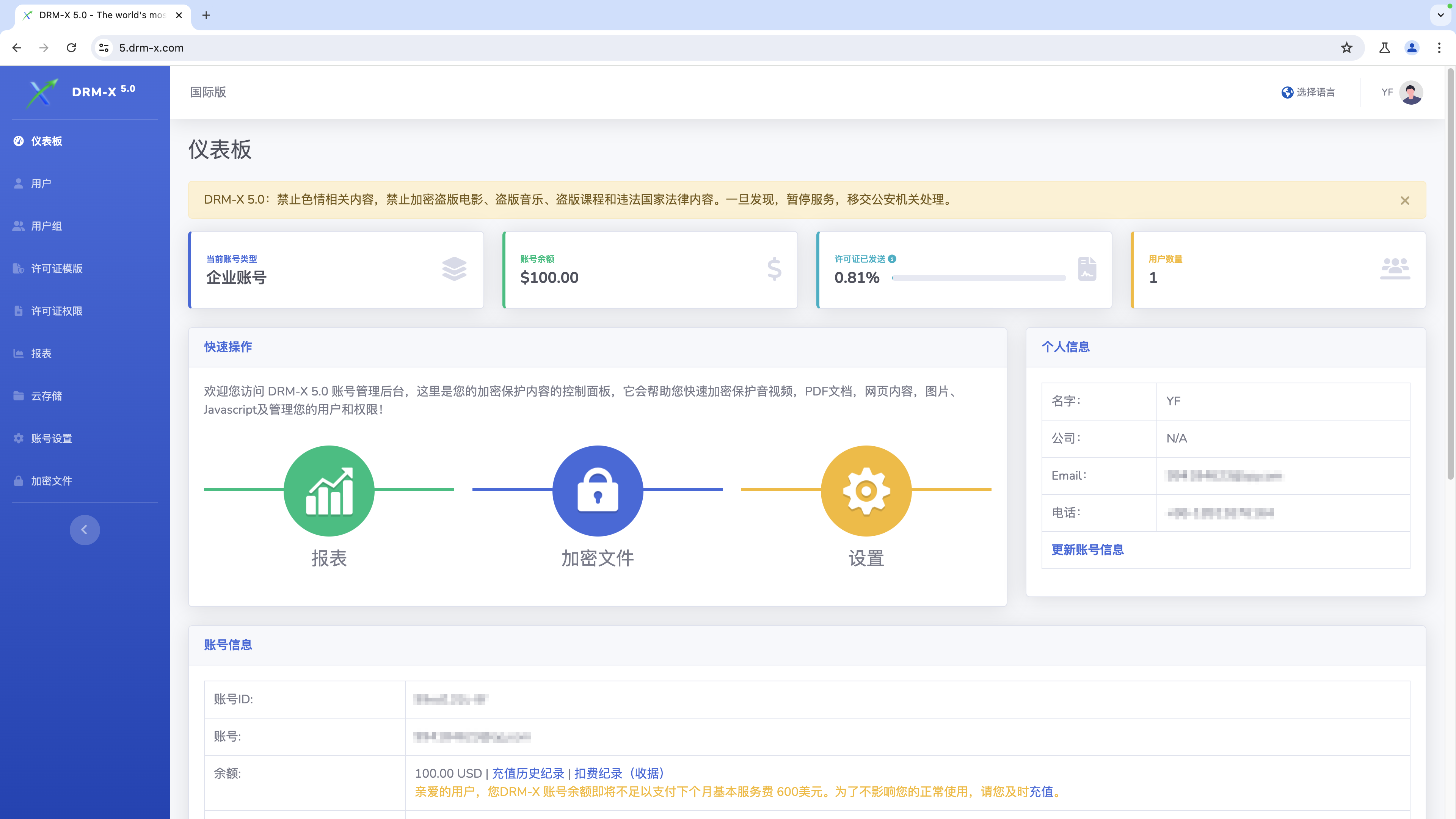 How to Protect Videos with DRM-X 5.0 ZJGet for macOS
This video will demonstrate how to encrypt files on macOS using ZJGet browser.
WATCH NOW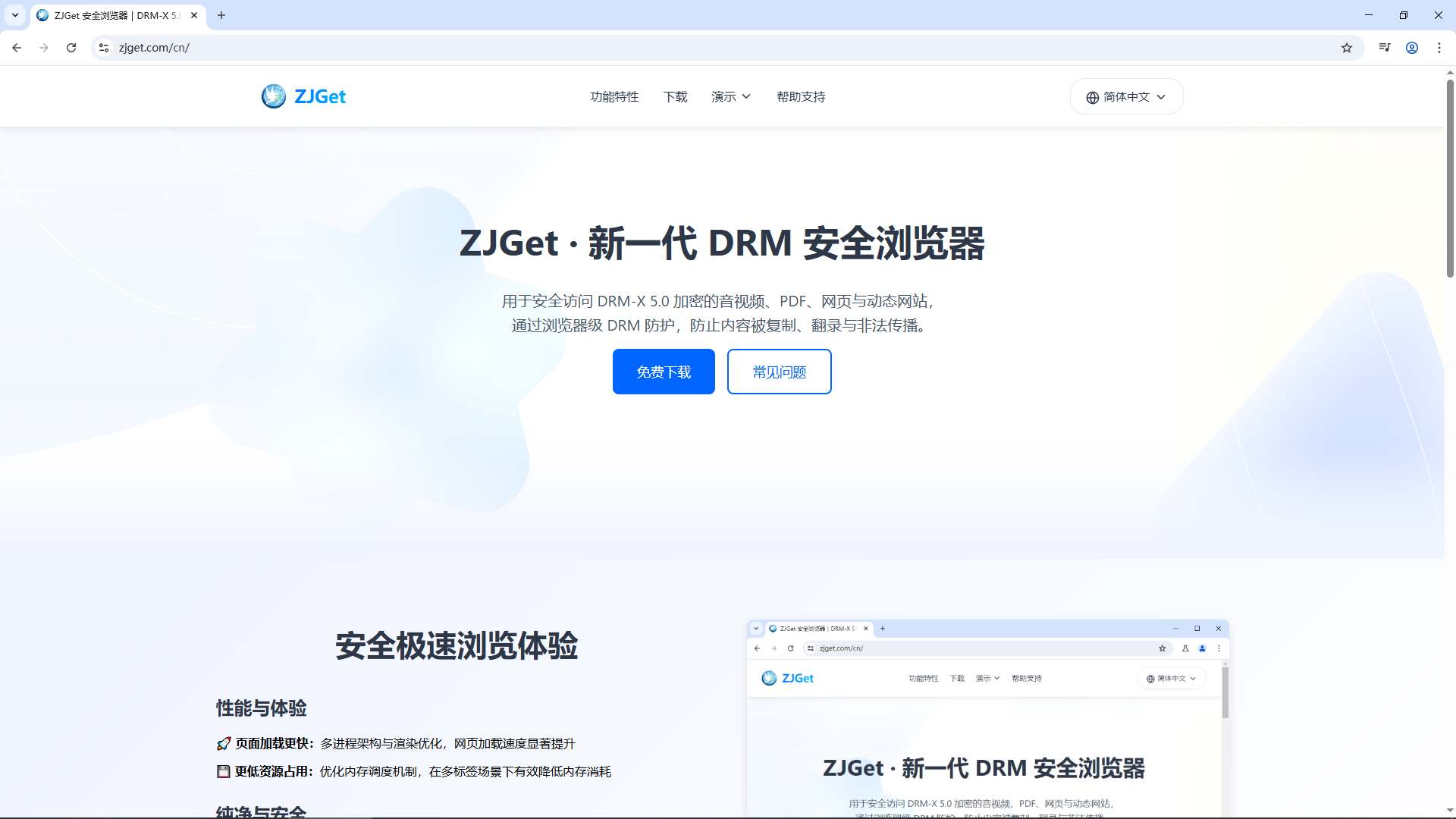 Getting Started with DRM-X 5.0 ZJGet for Windows
This video will show you how to download, install, and open encrypted files on Windows using the ZJGet browser.
WATCH NOW DRM-X 5.0 ZJGet User Guide
ZJGet Browser User Guide. This tutorial will help you easily master the core features and practical tips of the ZJGet browser.
WATCH NOWDRM-X 5.0 ZJGet FAQFrequently Asked Questions (FAQ) about using ZJGet Browser. This section compiles the most useful Q&As to help you overcome any obstacles you may encounter.
WATCH NOWQuestions?
Our reps have answers.
Ask about Haihaisoft products, pricing, implementation, or anything else — our highly trained reps are standing by, ready to help.
Tel: +64 27 507 9959 (New Zealand)
QQ: 1279126286 / 994184623
Contact us on Microsoft Teams
service#haihaisoft.com (replace # into @)
Contact Us